
1. THE OUTCOME
You will be able to clear your Gmail Inbox without deleting anything by archiving single emails, bulk-archiving thousands with search, and retrieving (unarchiving) messages from All Mail in seconds—on both desktop and mobile.
2. BEFORE YOU START
- Required: A Gmail or Google Workspace account, signed in at mail.google.com (desktop) or the Gmail app (iOS/Android)
- Required (desktop): A modern browser with JavaScript enabled (Chrome, Safari, Edge, Firefox)
- Required (mobile): Updated Gmail app (older versions often hide swipe settings)
- Optional but helpful (desktop): Enable keyboard shortcuts to archive with
e - Optional but helpful (desktop): Enable Send & Archive to reply + archive in one click
- Time estimate:
- Single-message archiving: ~5 seconds
- Enabling key settings: ~1–2 minutes
- Bulk archive with search: ~2–8 minutes depending on volume
Archiving is not deleting. If you meant “remove forever,” use Delete (Trash) instead.
3. THE STEPS
Step 1: Confirm what “Archive” does in Gmail
In Gmail, archiving removes the Inbox label from a conversation so it disappears from Inbox, but it still exists under All Mail.
Expected result: You understand that archived mail is still searchable and still stored in Gmail.
Think “Archive = hide from Inbox.” Delete = move to Trash.
Step 2: Archive a single email on desktop
Navigate to mail.google.com > open Inbox. Hover a conversation and click the Archive icon (box with a down arrow) on the right.
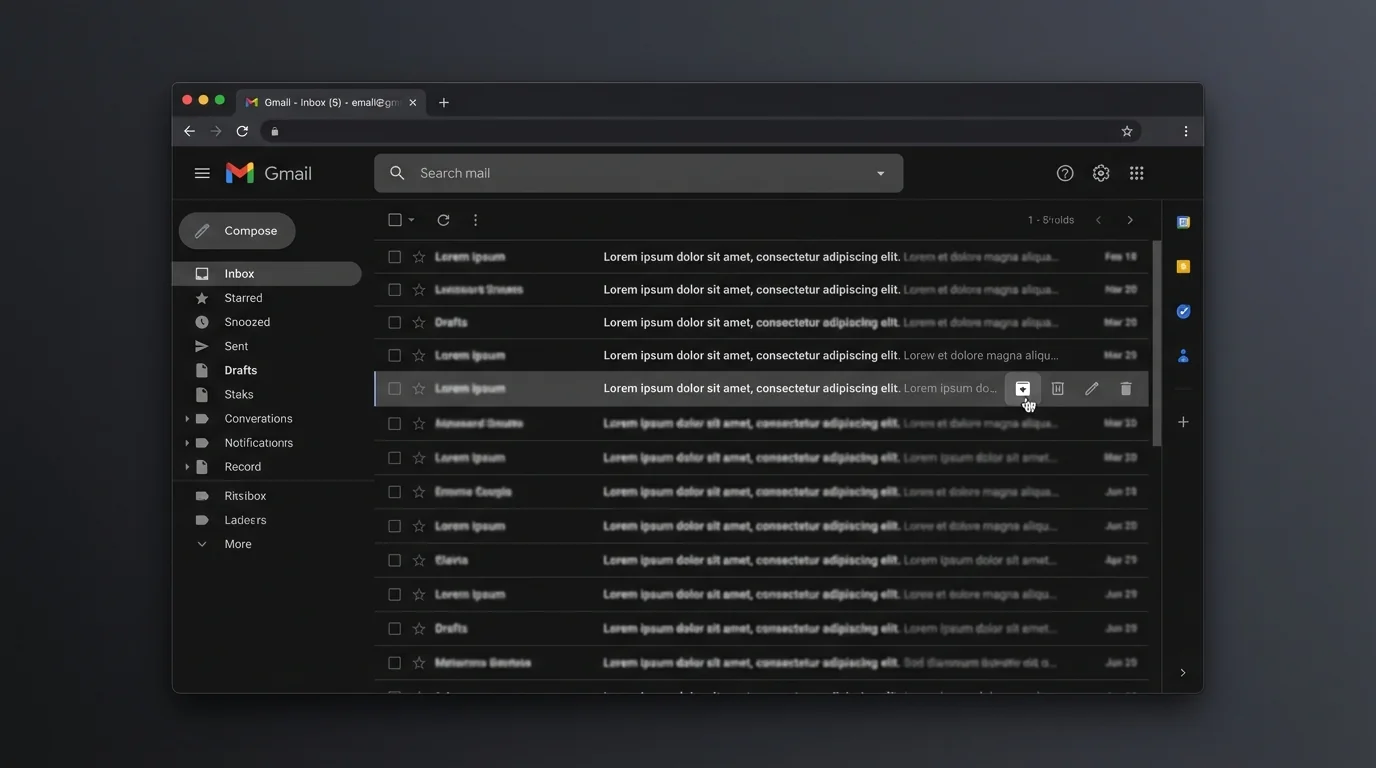
Expected result: The conversation immediately disappears from Inbox.
If you don’t see the icon, select the email checkbox and use the top toolbar Archive button instead.
Step 3: Archive multiple emails at once on desktop
In Inbox, click the checkbox next to each conversation you want to archive, then click Archive in the top toolbar.
Expected result: All selected conversations disappear from Inbox.
Use Shift + click to select a range of emails quickly.
Step 4: Bulk-archive by search (the fastest safe method)
Click the Gmail search bar and type a filter, such as in:inbox older_than:30d, then press Enter.
Now click the top-left Select checkbox, then click Select all conversations that match this search, then click Archive.
Expected result: Gmail archives everything matching your search, not just the current page.
If you skip Select all conversations that match this search, Gmail may only archive the current page (often ~50 emails).
Step 5: Find your archived emails in All Mail
In the left sidebar, click More > All Mail.
Expected result: You can scroll and search through all messages, including archived ones.
Archived mail is usually “everything that is not in Inbox,” but All Mail also includes messages that may have other labels.
Step 6: Unarchive an email (move it back to Inbox) on desktop
From All Mail, open the conversation you want back in your inbox, then click Move to Inbox (inbox icon with a down arrow).
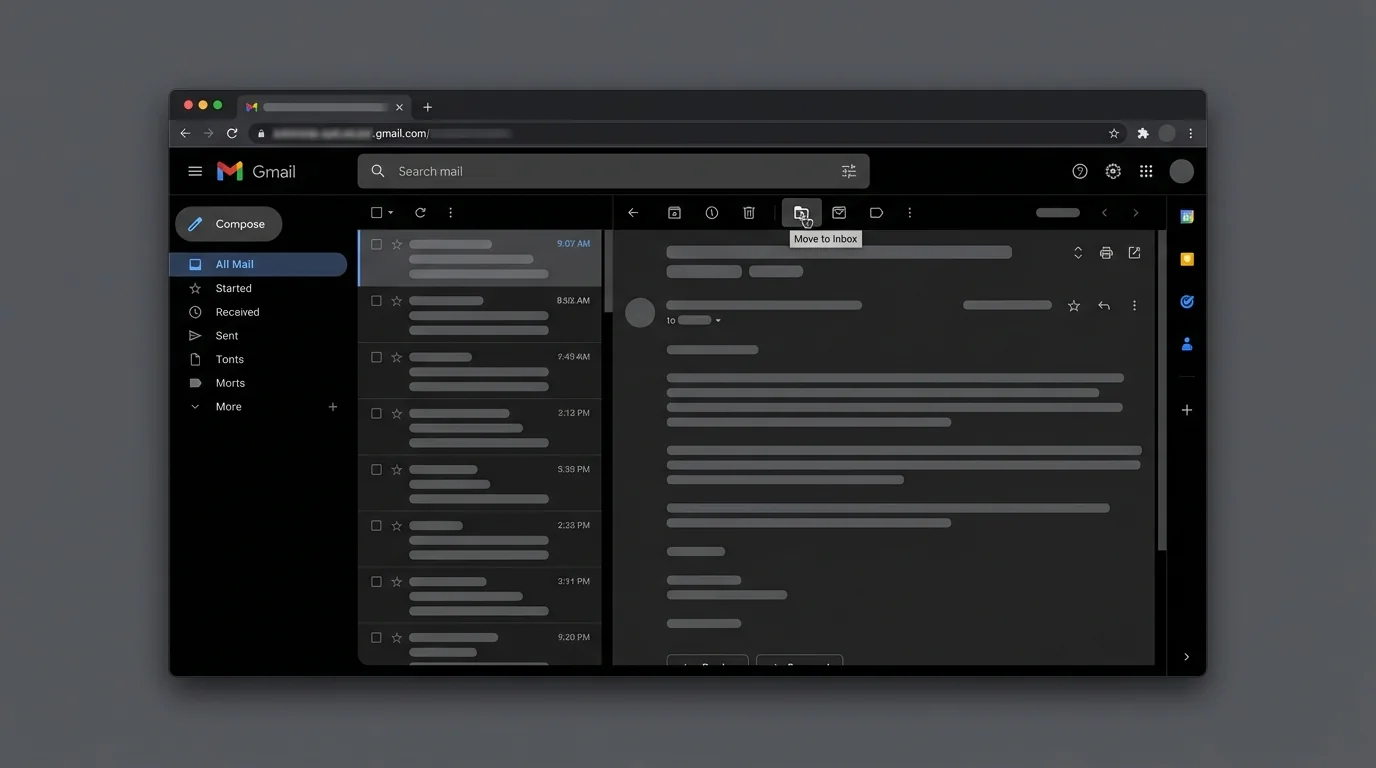
Expected result: The conversation reappears in Inbox.
You can also select multiple conversations in All Mail and click Move to Inbox from the toolbar.
Step 7: Enable “Send & Archive” for one-click reply + archive (desktop)
Click Settings (gear icon) > See all settings > General tab > find Send and Archive > select Show “Send & Archive” button in reply > scroll down and click Save Changes.
Expected result: When you reply, you see a Send & Archive button next to Send.
This is the cleanest workflow for threads you’re done with the moment you respond.
Step 8: Enable keyboard shortcuts so you can archive with e (desktop)
Click Settings > See all settings > General tab > Keyboard shortcuts > select Keyboard shortcuts on > Save Changes.
Expected result: Pressing e archives the currently open conversation or selected conversations.
If the Archive button ever “disappears,” e still works and is usually faster.
Step 9: Archive an email in the Gmail mobile app (tap method)
Open the Gmail app > open the email > tap Archive (box with down arrow) at the top.
Expected result: The email disappears from Inbox and is stored in All Mail.
This is the most reliable method when swipe actions are misconfigured.
Step 10: Set swipe actions to Archive (mobile)
Open the Gmail app > tap Menu (hamburger) > Settings > choose your account > General settings > configure the swipe action to Archive.
Optionally enable Confirm before archiving (if shown) to prevent accidental swipes.
Expected result: Swiping left/right archives instead of deleting (or doing nothing).
Many people think they “lost” mail because swipe was set to Archive and happened accidentally. Turn on confirm if you’re unsure.
Step 11: Find archived mail on mobile
In the Gmail app, tap Menu (hamburger) > All Mail.
Expected result: You can browse and search archived messages.
Step 12: Move archived mail back to Inbox on mobile
Open the message from All Mail > tap More (three dots ⋮) > Move to Inbox.
Expected result: The message returns to Inbox.
If you don’t see Move to Inbox, you’re probably viewing from a search result or label—go to All Mail and try again.
4. COMMON PATTERNS (COPY/PASTE)
Use these searches in the Gmail search bar, then bulk-archive using Select all conversations that match this search.
Pattern 1: Archive old inbox mail (safe cleanup)
- Search:
in:inbox older_than:30d - Action: Select all conversations that match this search > Archive
- Why: Clears backlog without deleting anything.
Pattern 2: Archive newsletters you already read
- Search:
in:inbox (unsubscribe OR "view in browser") - Action: Bulk Archive
- Why: Most marketing emails include these phrases.
Pattern 3: Archive “done” threads after replying
- Setting: Settings > See all settings > General > enable Send & Archive
- Action: Reply > click Send & Archive
- Why: Stops “reply sent” threads from lingering in Inbox.
Pattern 4: See only archived mail (exclude Inbox/Sent/Drafts)
- Search:
-in:sent -in:draft -in:inbox - Action: Review results, then Move to Inbox when needed
- Why: All Mail is broad; this isolates “not currently in Inbox.”
5. THE BETTER WAY (KEEPKNOWN)
Archiving helps, but it treats the symptom: too many messages reaching Inbox in the first place.
Most inboxes fail because they rely on algorithmic sorting and constant decisions (“Is this important?”). That creates decision fatigue and the low-grade stress behind notification anxiety. If that sounds familiar, read Email Anxiety Symptoms: Why “Managing Your Inbox” Is Making You Worse and Stop Organizing Email Start Screening It.
The KeepKnown Protocol flips the model:
- Bad method: guessing what’s bad (spam filters, AI sorting, endless unsubscribing)
- Good method: strict allow-listing—only people you trust reach your attention
KeepKnown keepknown.com connects via a verified OAuth2 flow and works at the API level (not a browser plugin). It automatically moves non-contacts out of your Inbox into a label like KK:OUTSIDERS.
What changes in your day-to-day:
- You archive far less because your Inbox stops filling with strangers.
- You spend less time bulk-selecting and cleaning.
- You keep important conversations visible by default.
If you’re already using Gmail filters, KeepKnown complements them by handling the hardest rule to maintain manually: “unknown senders don’t get Inbox access.” For deeper Gmail control, pair this with How to Set Up Gmail Filters (Precision Tutorial).
6. TROUBLESHOOTING
If the Archive button disappears on desktop, then use one of these fixes
- Click the email checkbox > look for Archive in the top toolbar
- Press
e(after enabling Keyboard shortcuts on) - Click the More (three dots) menu and look for Archive there
If bulk archive only processes ~50 emails, then you didn’t select all conversations
- After searching, click the top-left checkbox
- Then click Select all conversations that match this search
- Then click Archive
If you can’t find archived mail, then you’re looking in the wrong place
- Archived mail is under More > All Mail (desktop)
- Or Menu > All Mail (mobile)
- Use search operators like
-in:inbox -in:sent -in:draftto narrow it
If archiving from Apple Mail (Mac) behaves weirdly, then re-map Gmail folders
- Remove and re-add your Google account in System Settings > Internet Accounts
- Verify that Gmail’s All Mail is being used as the archive target
- Prefer archiving directly in Gmail (web/app) when consistency matters