
Your Outlook rules manager can look perfectly organized while messages still land in the wrong folder, alerts fail, or a new rule refuses to save. The reason is that Outlook doesn't have one rules environment. Classic Outlook, new Outlook, Outlook on the web, Exchange Online, personal accounts, and shared mailboxes expose different capabilities, and the rule set itself has a storage limit that depends on complexity rather than a simple rule count.
For founders, operators, executives, consultants, and IT leads, the practical answer is to manage Outlook rules as an operating system for incoming mail. Build the right conditions, keep high-consequence rules near the top, separate server behavior from desktop behavior, and audit the set before adding more logic. Native Outlook handles straightforward routing well, but power users need a clear method for testing, documenting, and eventually replacing rules that have outgrown the mailbox.
Table of Contents
- How Outlook rules actually work
- Creating and editing Outlook rules across clients
- The 256 KB rules quota and what it means in practice
- Rule order, exceptions, and stopping the chain
- Client-side versus server-side rules
- Composing rule sets for common workflows
- When native Outlook rules stop being enough
How Outlook rules actually work
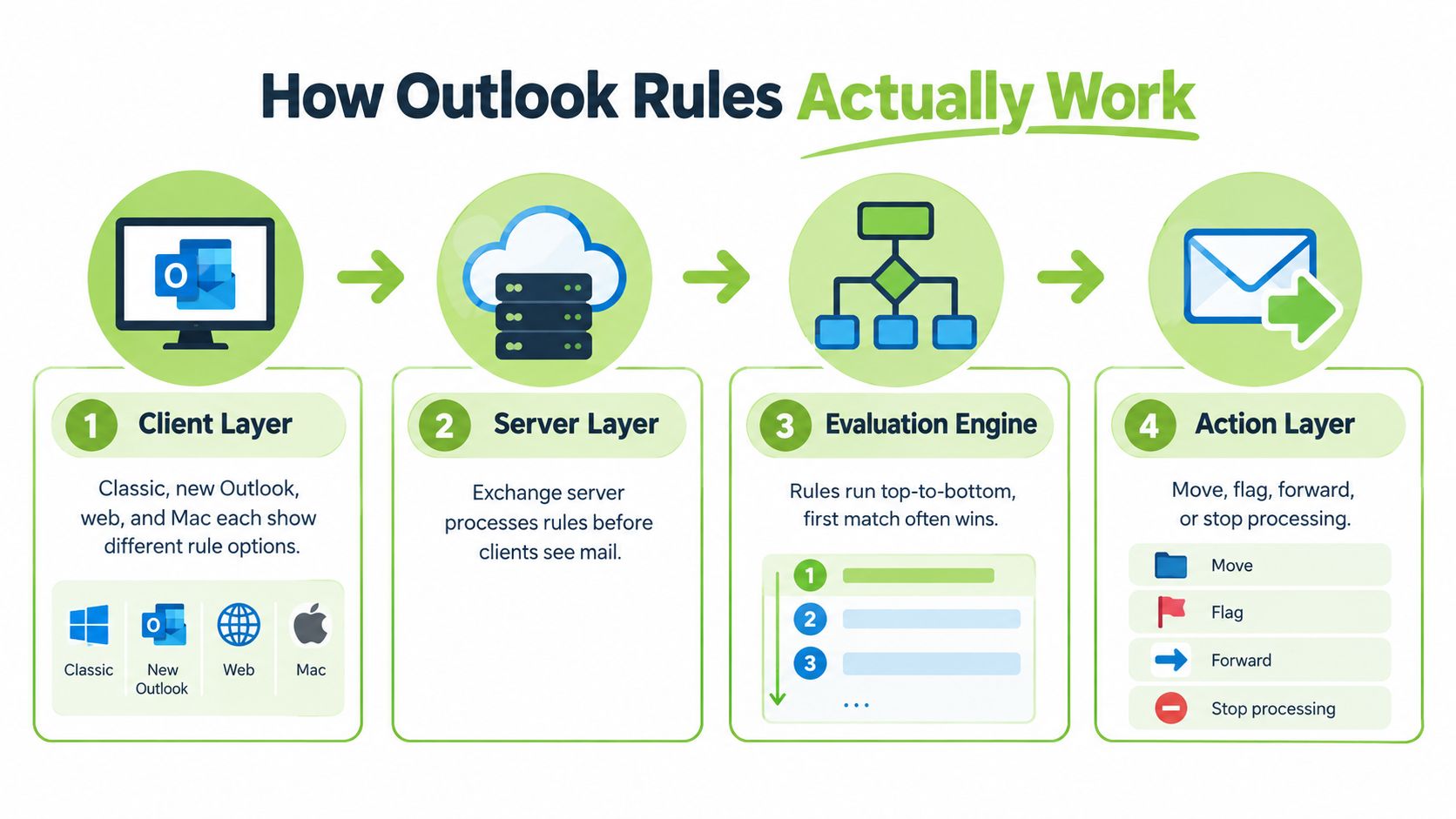
Outlook rules are easier to manage once they're treated as a layered system, not a single feature. The first question when a rule behaves inconsistently is not “What did the rule say?” It's “Which Outlook client created it, where is it stored, and what kind of rule is it?”
A rule contains several plain-language parts:
- Condition: What Outlook looks for, such as a sender, subject phrase, recipient, or message property.
- Action: What Outlook does after a match, such as moving, forwarding, categorizing, or flagging a message.
- Exception: The “except if” clause that prevents the action for a narrower case.
- Scope: The mailbox area the rule applies to, such as incoming mail, Sent Items, or another supported folder.
Exchange evaluates server-side rules when mail reaches the mailbox. Those rules can work before Outlook is open, which is why a message can move even while the user is away from the desktop. Classic Outlook also supports client-side rules, which depend on the desktop application running. A rule that relies on a local file, a desktop alert, or another computer-specific action belongs to that second layer.
Practical rule: Before troubleshooting a failed rule, identify the client and check whether the action requires Outlook for Windows to stay open.
Microsoft distinguishes classic Outlook from newer Outlook experiences by rule type. Classic Outlook supports client-side and server-side rules, while new Outlook, Outlook on the web, and Outlook.com support server-side rules only. Microsoft also lists actions and conditions that can force a rule into the client-side category, including message-body matching, some address and header conditions, sensitivity and importance, follow-up flags, sounds, desktop alerts, category assignment, and immediate deletion. The Microsoft guidance on fixing broken Outlook rules is the right reference when a rule shows a client-only warning.
Shared mailboxes add another ownership problem. A delegate may see or edit rules differently from the mailbox owner, and a rule attached to a personal mailbox shouldn't be assumed to govern a shared mailbox. Before changing anything, check the account or mailbox selected in the rules manager. That small check prevents a common operational mistake, editing the visible inbox while the actual rule belongs elsewhere.
Creating and editing Outlook rules across clients
The Outlook rules manager changes slightly with each client, but the design sequence stays stable: choose the mailbox, define a narrow condition, select an action, add exceptions, then inspect the final rule before saving.
Classic Outlook for Windows
In classic Outlook, open Home > Rules > Manage Rules & Alerts. Select New Rule, then choose either a template such as Move messages from someone to a folder or Apply rule on messages I receive to start from a clean rule. The template is faster, while the clean option gives more control over conditions and exceptions.

A useful example is a vendor invoice workflow:
- Set the sender condition to
invoices@vendor.com. - Add a subject condition containing
PO-. - Choose move it to the specified folder.
- Select the Finance folder.
- Add an exception for messages where the user's name is only in the Cc line.
- Name the rule clearly, such as
Finance, vendor invoices, PO subject. - Save it, then test it against a real message that should match and a similar message that should not.
The exception matters because a sender and subject match alone may catch messages that merely copy the recipient. The rule should express the business decision, not only the visible pattern.
Outlook on the web and new Outlook
In Outlook on the web, open Settings > Mail > Rules. New rules are appended at the bottom, so the order must be corrected manually after creation. Outlook's rule management documentation explains the available controls and rule actions.
New Outlook uses server-based rules and may warn when a selected action requires classic Outlook behavior. Sounds, desktop alerts, and scripts are examples of actions that depend on the local client. If a rule needs one of those actions, the warning isn't a cosmetic message. It tells the user that the rule won't behave as an always-on mailbox rule.
Editing deserves the same attention as creation. Rename rules when their purpose changes, move high-priority rules upward, and disable an experimental rule instead of deleting it. A name such as VIP, keep in Inbox, stop chain gives a future administrator more context than Rule 7.
For a deeper routing example, see Outlook email routing.
The following video can help users recognize the classic rules interface before comparing it with newer clients.
The 256 KB rules quota and what it means in practice
The most important Outlook rules limit isn't a fixed number of rules. Microsoft documents a 256 KB default quota for all enabled inbox rules in Exchange Online, with an admin-configurable range from 32 KB to 256 KB. Outlook warns users when the quota is reached, and new rules or updates can no longer be created. The Microsoft explanation of the inbox rules quota frames the limit as mailbox rule storage.
That makes the quota a complexity budget. A short rule with one sender and one action uses less space than a rule carrying multiple conditions, exceptions, and actions. A mailbox can therefore feel “underused” by count while being close to its storage ceiling.
| Mailbox type | Default quota | Raised maximum | How to change |
|---|---|---|---|
| Exchange Online mailbox | 256 KB | Admin-configurable within Microsoft's documented range | Exchange administrator changes the mailbox rule quota |
| Personal Outlook mailbox | Varies by account service | Not a universal Outlook client setting | Check the account provider and available administration |
| On-premises Exchange mailbox | Organization-dependent | Administrator-controlled | Exchange administrator reviews the organization's mailbox configuration |
The safe operational response is to audit before adding another narrow rule. Remove duplicates, retire rules for completed projects, and combine conditions where a single rule can express the same decision. Disabled rules are also useful during testing, because Microsoft community guidance notes that disabled rules don't count toward the enabled-rule quota.
Exchange Online administrators may raise the quota to 512 KB in supported scenarios, but that should be treated as an escalation path rather than permission to let rule sprawl continue. Shared and resource mailboxes may justify administrative review, especially when many people depend on the same routing behavior.
A quota problem is usually a design problem first. Compress the logic before expanding the storage allowance.
The practical checklist is simple: inspect existing rules, delete obsolete branches, simplify exceptions, and move organization-wide logic to centrally managed controls where appropriate. A mailbox rule set should remain understandable to the person who inherits it, not merely acceptable to the person who built it.
Rule order, exceptions, and stopping the chain
Rule order determines which action gets the first opportunity to affect a message. Outlook evaluates rules from top to bottom, and Microsoft provides Up and Down controls for changing that order. A broad rule near the top can capture mail before a more specific rule ever gets a chance.
Put high-consequence matches first
Suppose an executive receives messages from a priority customer who also subscribes to a newsletter. The VIP rule should sit above the newsletter sweep:
VIP customer, keep in InboxCustomer project routingNewsletter, move to ReadingGeneral low-priority mail
The first rule can keep the message visible, while a lower rule may move it away. The exact result depends on the actions and whether the chain is stopped, so the order should be tested with representative mail.
An exception narrows a rule without forcing a separate rule for every edge case. For example, a newsletter rule might move messages containing a subscription marker unless the sender belongs to a priority domain. Exceptions are best used as deliberate carve-outs, not as a growing collection of emergency patches.

Use the stop flag as a boundary
Stop processing more rules tells Outlook that a match should end the chain. It belongs on a VIP rule when downstream movement, categorization, or deletion would undermine the VIP decision. It should remain off when later rules still need to act, such as a categorization rule that should apply after routing.
During testing, disabling a rule is safer than deleting it. Renaming it also helps expose intent. Names should describe the match and consequence, such as External vendor, Finance folder, no CC-only mail, rather than relying on the order alone.
The Outlook rules order guide provides a useful reference for reviewing this design choice. A rule set is healthy when another operator can predict the result by reading the order, conditions, exceptions, and stop settings without opening every message manually.
Client-side versus server-side rules
The central difference is whether the mailbox can perform the action without the desktop Outlook process. Server-side rules run against the mailbox and continue working when classic Outlook is closed. Client-side rules depend on the local Outlook application, so they stop when the computer is shut down, the user is offline, or the relevant profile isn't running.
| Dimension | Server-side rules | Client-side rules |
|---|---|---|
| Execution point | Exchange mailbox | Outlook desktop client |
| Works while desktop Outlook is closed | Yes, for supported actions | No |
| Best suited to | Always-on routing and mailbox actions | Device-specific behavior |
| Typical actions | Move, copy, forward, mark read, set importance, and supported notifications | Desktop alerts, sounds, local processing, and actions tied to the computer |
| Main failure mode | Quota, unsupported condition, or rule conflict | Outlook isn't running |
| Reach | Mailbox-level behavior can be visible across supported clients | Limited to the client where the rule runs |
Server-side rules are the safer home for routing that must happen consistently. A customer message that needs to reach a project folder shouldn't depend on one executive's laptop remaining open. A notification that only makes sense at a workstation can remain client-side, provided the user accepts that it may stall.
Microsoft's documentation identifies common client-side triggers, including message-body conditions, desktop alerts, sounds, scripts, local data, and some actions involving categories or deletion. Users should read the warning banner instead of assuming every rule created in classic Outlook is portable to new Outlook or the web.
A useful decision rule is:
- Always-on routing: Use a server-side rule where the client exposes a supported condition and action.
- Mailbox-wide prioritization: Keep the decision on the server when it must apply before mobile or web access.
- Device-specific behavior: Use a client-side rule only when a local alert, file, or application is required.
- Troubleshooting: If a rule works only while Outlook is open, inspect its client-side dependencies first.
The guide to Outlook rules that aren't working helps frame the next diagnostic step. The failure isn't always a bad condition. It may be the wrong execution layer.
Composing rule sets for common workflows
A useful rule set mirrors the way a team makes decisions. It doesn't merely collect senders and folders. The following examples show how operators can compose overlapping rules without losing control.
Vendor and invoice mail
An operator handling supplier traffic might use this sequence:
- Rule name:
Vendor invoices, route to Finance - Condition: Sender is the vendor address and the subject contains
PO- - Action: Move to Finance, then flag for review
- Position: Above broad vendor routing
- Stop processing: Off if a later categorization rule should apply, on if Finance placement is final
A second rule can route the vendor's general project correspondence by domain. The invoice rule stays higher because finance review carries a different consequence from ordinary filing.
VIP messages
An executive's priority contacts need a clear boundary:
- Rule name:
VIP senders, keep visible - Condition: Sender belongs to the approved VIP group
- Action: Keep in Inbox, mark important, and apply a priority category where supported
- Position: At the top of the incoming-mail chain
- Stop processing: On when lower rules would move or suppress the message
The important design choice is not the folder name. It's the decision to protect the VIP match before broad sweeps run.
Research and newsletter separation
A research analyst may separate internal threads from external reading:
- Rule name:
Internal threads, retain in working Inbox - Condition: Sender or participant belongs to the organization
- Action: Keep in Inbox and categorize as internal
- Position: Above newsletter processing
- Stop processing: Usually off if additional classification is needed
- Rule name:
External newsletters, move to Reading - Condition: Recognized mailing-list or subscription signals
- Action: Move to Reading and mark as low priority where available
- Position: Below internal-thread protection
- Stop processing: On when the Reading folder is the final destination
This arrangement avoids letting a broad subject match overpower a relationship-based decision.
Shared review queues
An administrator can use a BCC-to-mailbox workflow for messages that need team review:
- Rule name:
Shared review, categorize for triage - Condition: The shared mailbox appears in the BCC or designated recipient field
- Action: Apply a review category and move to a shared queue
- Position: Above general archival rules
- Stop processing: Off if an audit or categorization rule must also run
Names, ownership, and purpose should live in a shared operations note. A successor needs to understand why the rule exists, which business process owns it, and what would break if it were removed.
Audit and migration discipline
Microsoft 365 administrators can search mailbox activity in the Microsoft Purview audit log and inspect inbox rule settings, including who created or deleted a rule and when. Microsoft guidance also distinguishes organizational audit capability from personal Outlook accounts, where equivalent rule-change history generally isn't available. That makes the audit trail a debugging tool, not merely a compliance archive.
A failure triage can follow this order:
- Confirm delivery: Check that the message reached the mailbox.
- Inspect the rule: Review conditions, exceptions, actions, and client or server scope.
- Check order: Look for an earlier broad rule that captured the message.
- Review activity: Search the Purview audit log for rule changes and identify recent edits.
- Retest safely: Disable the suspected rule, use a controlled message, and restore only after the result is understood.
Modern Outlook capabilities are also changing. Microsoft release information and independent coverage describe additions such as the External tag as a rule condition, permanent delete as an action, and richer flag or follow-up management. Those changes make periodic review more important because a newly available action can alter the risk of an old workflow.
Before a tenant switch, preserve the rule intent and the rule configuration. Administrators can use PowerShell Get-InboxRule or tools such as MFCMAPI to export or inspect existing rules, then document which rules are server-side, which depend on classic Outlook, and which need redesign rather than direct migration.
When native Outlook rules stop being enough
Native Outlook rules work well when the decision can be expressed through mailbox properties, sender details, subject metadata, supported headers, folders, and straightforward exceptions. They become harder to govern when the rule set grows across clients, accumulates narrow exceptions, or depends on behavior that belongs outside the mailbox.
The operating model has four constraints:
- Storage: Enabled rules consume mailbox rule quota.
- Execution: Server-side and client-side rules don't behave the same way.
- Order: Rules are evaluated sequentially, so broad matches can intercept specific ones.
- Capability: Each Outlook client exposes a different subset of conditions and actions.
The missing layer is often relationship-aware filtering. Native rules may identify a sender or phrase, but a power user may need to distinguish a trusted contact from an unknown sender, recognize prior replies, combine VIP domains with attachment state, or apply nested all, any, and exception logic. KeepKnown addresses that gap as an advanced email filter builder for Gmail, Google Workspace, Outlook, and Microsoft 365. It supports up to 20 conditions and three nested group levels, can preview filters against real mail, saves new filters paused, and offers Shadow, Review Only, or Enforce modes where the connected provider supports them. A saved filter is called an Inbox Protocol inside the product, but the plain term filter comes first.
A practical trigger for evaluation is a ruleset with 40 active entries, three exception clauses per rule, or any rule that depends on body keywords. Those thresholds are editorial warning signs, not platform limits. They indicate that the mailbox needs a clearer decision layer, safer previews, and a recorded explanation of why each message matched.
KeepKnown's core filtering doesn't read email bodies. It can use protected relationship signals and encrypted subject metadata when a rule requires it, while the connected provider determines exact actions and enforcement modes. The right next step is to test the most confusing workflow rather than replace every native rule at once.
KeepKnown helps power users build richer filters for Gmail, Google Workspace, Outlook, and Microsoft 365, preview decisions against real mail, and activate them in supported modes without changing email clients. Start by auditing a noisy Gmail inbox or building a paused filter, then visit KeepKnown to turn the most fragile Outlook workflow into a clearer, testable process.