Step-by-step Gmail filter setup
How to create Gmail filters without accidental matches.
Build the search first, inspect the messages it finds, then choose actions such as Apply label, Skip Inbox, Categorize as, or Mark as important.
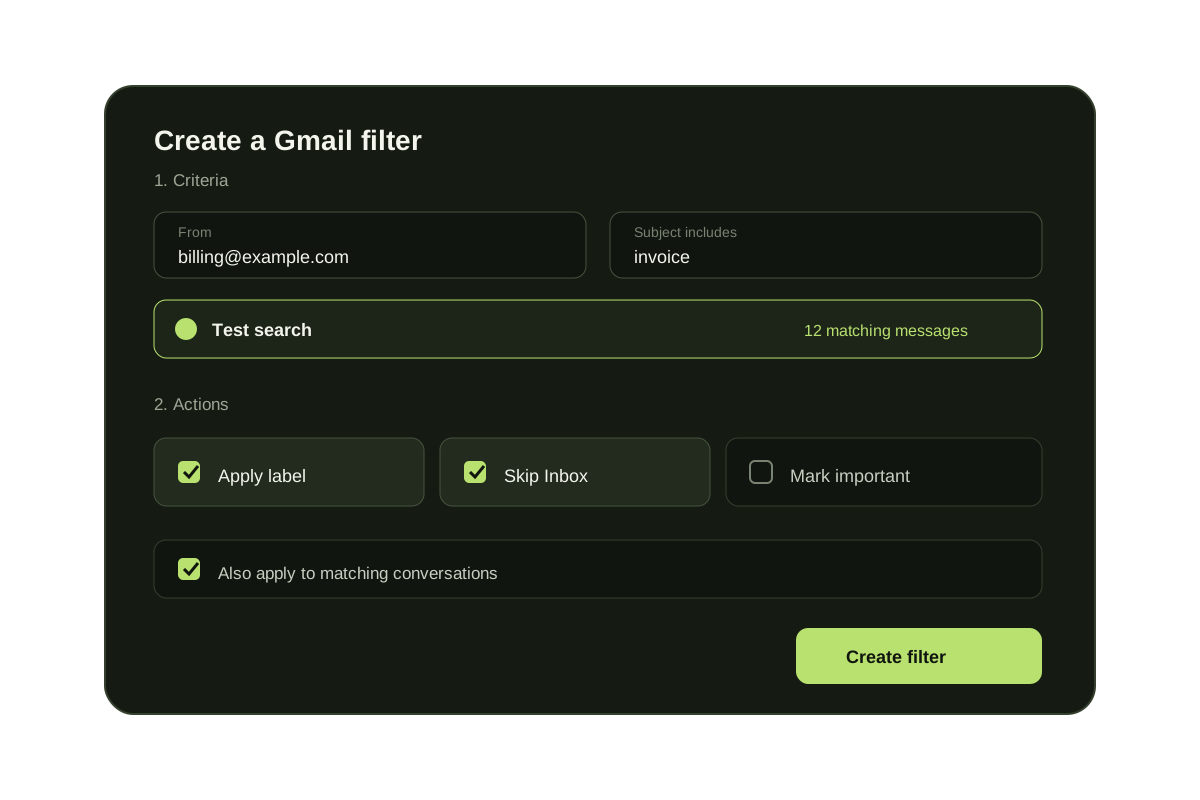
Gmail filter setup has three parts: define the search, verify the matches, and choose the action. You can begin from Gmail's search options or from an existing message. Google documents both paths in its official filter instructions.
Testing matters because Gmail applies a saved filter automatically to new messages that meet its criteria. A broad keyword, an incomplete sender address, or the wrong use of OR can move legitimate mail. Inspect the search results before selecting Create filter.
Create and test a Gmail filter
- Open Gmail on a computer and select Show search options in the search box.
- Enter a sender, recipient, subject, phrase, attachment, size, or date criterion. Combine only the conditions the rule truly needs.
- Select Search and inspect both expected matches and false positives.
- Return to the search panel, select Create filter, and choose the actions.
- Select Apply the filter to matching conversations only when the tested result set is safe for existing mail.
- Create the filter, then review it under Filters and Blocked Addresses.
Gmail filter actions and their effect
| Action | Result | Use it when |
|---|---|---|
| Skip Inbox | Archives matching mail | The message should remain searchable but not interrupt |
| Apply label | Adds a reusable Gmail label | You need a stable review or project view |
| Categorize as | Routes mail to a Gmail category tab | The message fits Primary, Social, Promotions, Updates, or Forums |
| Mark as important | Adds Gmail's importance marker | Known high-value mail needs visibility |
| Forward | Forwards matching new mail | A verified recipient or workflow needs a copy |
| Delete | Moves matching mail to Trash | The rule is narrow, tested, and intentionally destructive |
Manage the rule after creation
Edit or disable
Open Settings, choose See all settings, then Filters and Blocked Addresses to change or remove the rule.
Import or export
Gmail can export selected filters as XML and import a saved filter file into another account.
Know the limits
Forwarding affects new messages, and replies match only when the reply still satisfies the filter criteria.
When KeepKnown adds the missing layer
| Need | Native Gmail | KeepKnown |
|---|---|---|
| Known sender or keyword | Create a filter | Supported |
| Apply labels or categories | Create a filter | Supported |
| Sender not in contacts | No native condition | Contact-based condition |
| Preview a multi-condition rule | Test a search manually | Preview real mail |
| Save without immediate enforcement | Not available | Paused by default |
| Explain why a message moved | Inspect the rule | Decision log |
Questions before you connect.
How do I create email filters in Gmail?
Open Gmail search options, enter criteria, test the search, then choose Create filter and select actions such as Categorize as, Mark as important, Apply the label, or Apply to matching conversations.
What does Categorize as do in a Gmail filter?
The Categorize as filter action directs matching email into one of Gmail's existing category tabs.
Can I apply a Gmail filter to existing emails?
Yes. After testing the criteria, select the option to apply the filter to matching conversations before creating or updating the rule.
Can I create Gmail filters in the mobile app?
Gmail's full filter creation and management workflow is designed for Gmail in a computer browser.
Gmail filter setup
Let contacts through. Move unknown senders aside automatically.