Gmail contact-based filtering
Gmail filter sender not in contacts: route unknown senders safely.
Use a relationship rule Gmail cannot express natively. Known people pass; first-time senders move to review, and every message stays recoverable.
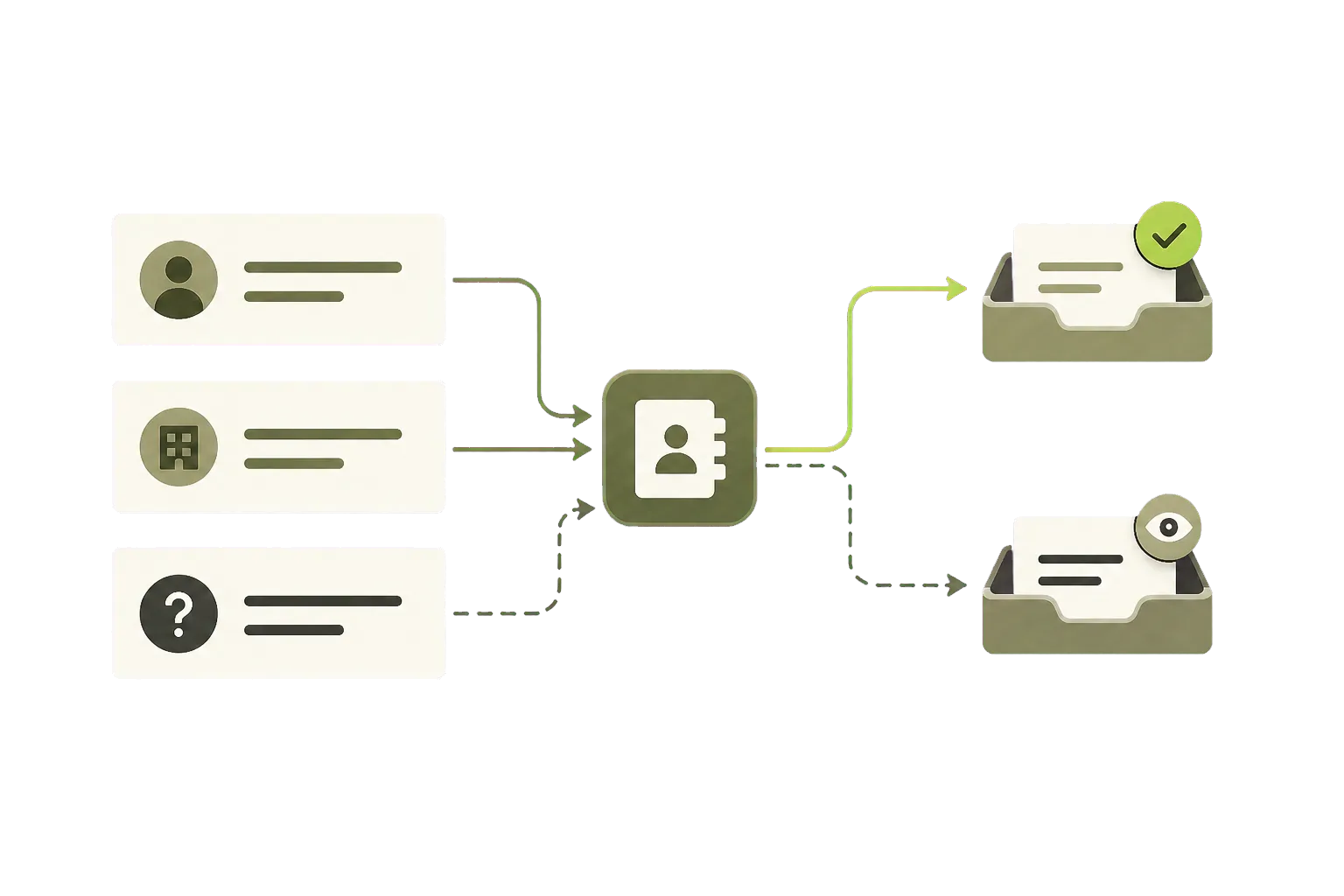
The missing condition is contact membership. Gmail can match a sender you already know, but it cannot ask whether a sender is absent from Google Contacts. Google's current filter criteria cover fields such as sender, recipient, subject, words, size, date, and attachments—not the sender's relationship to you.
KeepKnown evaluates that relationship before routing. It can recognize contacts, approved domains, people you have replied to, and sender groups. Everyone else moves to a review label instead of being blocked or deleted.
Define who counts as known once.
People you know
Contacts and people you have already replied to can pass without maintaining one rule per address.
Organizations you trust
Approve a domain or sender group when an entire team should reach the inbox.
Everyone else
First-time and unfamiliar senders move to KK:OUTSIDERS for review. Nothing is deleted.
Build from this decision
Start with “sender is not known.”
Combine contact membership with approved domains, prior replies, or exceptions in one readable filter.
Starts paused. Preview recent matches before activation.
A safe workflow for first-time senders
- Connect Gmail or Google Workspace with Google authorization.
- Choose the relationships that make a sender known: contacts, approved domains, prior replies, or sender groups.
- Preview recent matches and add exceptions for expected account alerts or important first-time senders.
- Save the rule paused, then activate it when the preview looks right.
- Review unfamiliar mail in KK:OUTSIDERS and approve any sender who should pass next time.
Native Gmail rules and contact-based screening
| Need | Native Gmail | KeepKnown |
|---|---|---|
| Filter one sender or domain | Yes | Yes |
| Filter a known keyword or subject | Yes | Yes |
| Match every sender not in contacts | No native condition | Yes |
| Keep first-time mail recoverable | Possible with a maintainable rule | Dedicated review label |
| Preview recent matches | Run a search manually | Built-in preview |
| See why a message moved | Inspect the filter | Decision log |
Use your own inbox
Test the rule before it moves anything.
Preview which recent messages match, then keep the filter paused until you are ready.
No card required. No inbox changes during the audit.
Questions before you connect.
Can Gmail filter senders not in my contacts?
Gmail can filter individual senders, words, and labels, but it does not offer a native rule for every sender who is not in your contacts.
Does KeepKnown delete or permanently block email?
No. KeepKnown routes outsider mail to a separate label so important messages from new senders can still be found.
What if a legitimate first-time sender is not in contacts?
The message stays recoverable in the outsider review label. Approve the sender or add them to contacts when future messages should pass.
Does contact-based filtering read the email body?
No. The core relationship rule uses sender metadata, contacts, approved domains, prior correspondence, and your decisions.
Gmail unknown senders
Move senders not in your contacts out of the inbox automatically.