Gmail filters guide
Gmail filters, from first rule to advanced routing.
Create reliable Gmail filters for known patterns, test the search before activation, and use KeepKnown when the rule needs contacts, nested logic, safe previews, or a decision log.
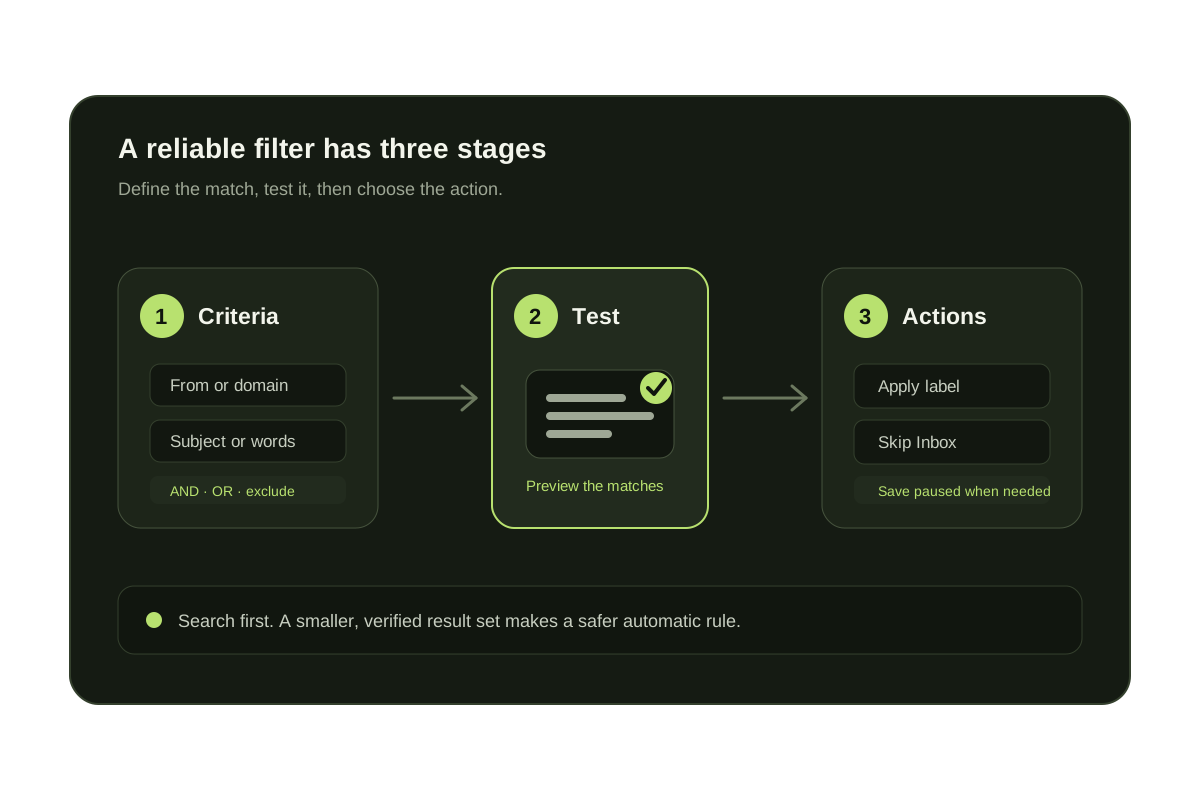
Gmail filters are saved searches with automatic actions. A rule can match a sender, recipient, subject, phrase, attachment, size, or date and then archive, label, star, forward, delete, or categorize the matching message. Google documents the native workflow in its Gmail filter guide.
The safest workflow is search first, inspect the matches, and activate only when the result set is correct. KeepKnown extends that model with contact membership, nested conditions, previews against real mail, staged activation, and an explanation for every match.
Short answer
Use Gmail filters for predictable patterns.
Use sender, subject, keyword, date, attachment, and category rules when the pattern is already known. Use KeepKnown when a rule depends on relationships, multiple condition groups, or a safe preview.
What a Gmail filter can match and do
| Stage | Examples | Why it matters |
|---|---|---|
| Criteria | From, To, Subject, words, size, date, attachment | Defines which messages qualify |
| Test | Run the search before saving | Finds false positives before automation |
| Actions | Label, archive, star, categorize, forward, delete | Controls what happens after a match |
| Existing mail | Apply to matching conversations | Extends the rule to the current backlog |
| Management | Edit, delete, export, or import filters | Keeps the rule set maintainable |
Choose the right filtering layer
Native Gmail filters
Best for receipts, newsletters, alerts, exact senders, and other patterns that can be expressed as one search.
Contact-based screening
Use a sender's relationship to you when an exact address or keyword list would be impossible to maintain.
Advanced filter building
Combine conditions, preview real matches, save paused, and keep a decision log before enforcing a richer rule.
Native Gmail filters and KeepKnown
| Capability | Native Gmail | KeepKnown |
|---|---|---|
| Exact sender or keyword | Yes | Yes |
| Apply labels or move mail | Yes | Yes |
| Sender is not in contacts | No native condition | Yes |
| Nested AND/OR groups | Limited search expression | Up to 3 levels |
| Preview on real mail | Search manually | Built-in preview |
| Save without enforcing | No staged mode | Paused by default |
| Explain each decision | Inspect the rule manually | Decision log |
Questions before you connect.
How do I create a filter in Gmail?
Open Gmail on a computer, select Show search options, enter and test the criteria, choose Create filter, select the actions, and save.
Can Gmail filters apply to existing emails?
Yes. Select the option to apply the filter to matching conversations when you create or update the rule.
Can Gmail filter everyone who is not in my contacts?
Gmail does not expose a native sender-not-in-contacts condition. KeepKnown adds contact-based screening without deleting the message.
Can I test a Gmail filter before creating it?
Run the criteria as a Gmail search first. KeepKnown also provides a dedicated preview and lets advanced filters remain paused.
Gmail filters
Build, preview, and activate a richer Gmail filter.