Gmail existing-mail cleanup
Apply Gmail filters to existing emails with matching conversations.
Gmail filters usually shape future mail, but the matching conversations option can apply many filter actions to old messages too. Use it for known sender, subject, label, or keyword patterns; use KeepKnown for the ongoing rule Gmail cannot express: sender not in contacts.
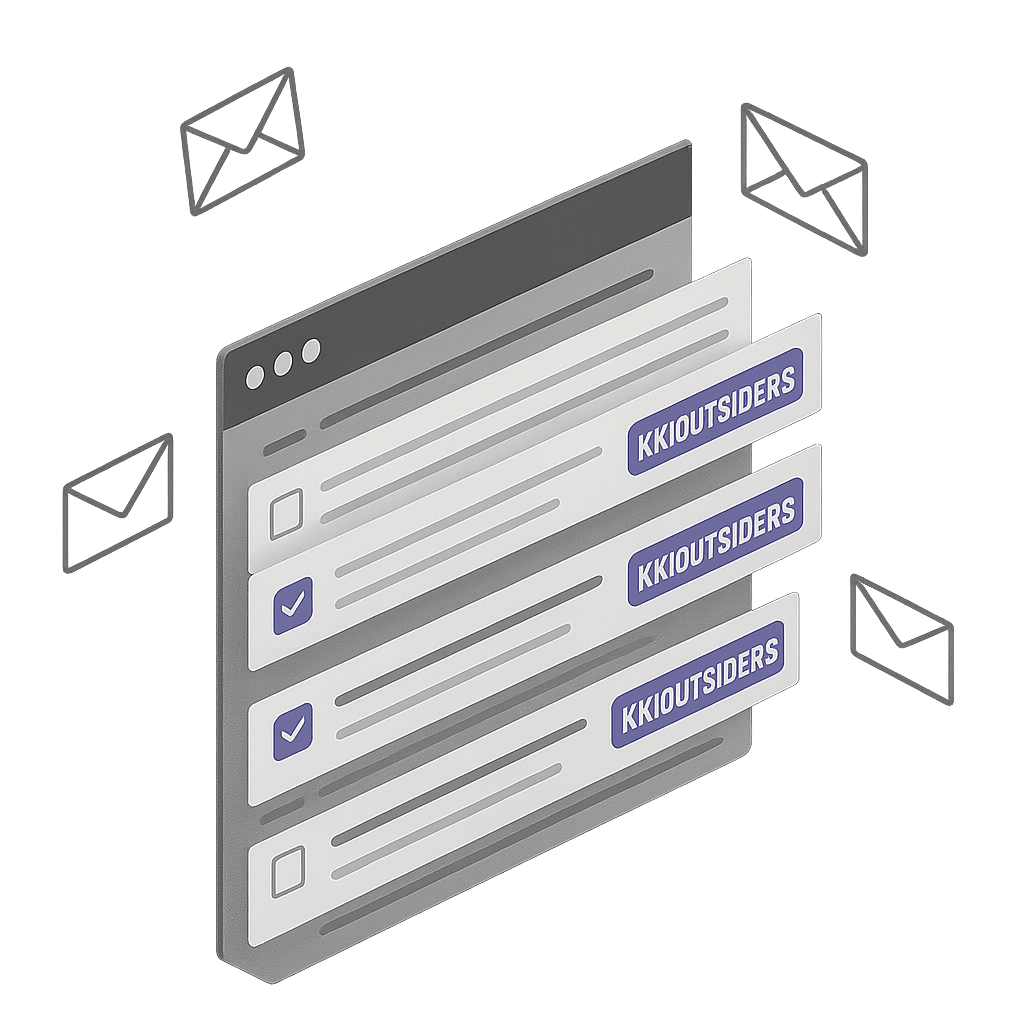
How to apply a Gmail filter to existing emails
- Open Gmail and search for the messages you want the rule to match.
- Confirm the results are correct before turning the search into a filter.
- Choose Create filter from the search options panel.
- Select the actions you want, such as Apply label, Archive it, Star it, Mark as read, Categorize as, or Mark as important.
- Select Also apply filter to matching conversations before creating the filter.
Which filter actions work well on old mail?
Existing-message cleanup works best for organization actions: labels, archive, stars, categories, read state, and importance markers. Forwarding filters are mostly about future messages, and replies only follow the filter if they match the same criteria.
Good existing-mail cleanup examples
from:newsletter@example.com- label or archive old newsletter mail.subject:"receipt" newer_than:1y- collect recent receipts under one label.from:vendor@example.com has:attachment- find vendor messages with files attached.category:promotions older_than:30d- clean older promotional mail.
Where existing Gmail filters stop
Matching conversations helps with old mail after you know the pattern. It does not prevent tomorrow's unknown senders from rebuilding the backlog. KeepKnown handles that recurring problem by checking whether the sender is in contacts and moving outsiders to KK:OUTSIDERS without deleting the message.
Source: Google Gmail filters help.
Short answer
Choose Also apply filter to matching conversations when creating the filter.
Search for the messages you want, create a filter from that search, choose the action, and select Also apply filter to matching conversations before creating it. Use KeepKnown when the ongoing rule is not a phrase or sender, but every sender who is not in contacts.
Best uses for existing-message filters
Label old mail
Apply labels to historical newsletters, receipts, alerts, vendor notices, or project messages.
Archive known noise
Move known low-value patterns out of the inbox after confirming the search results are right.
Mark read or important
Change read state or importance markers for old conversations that match a trusted rule.
Categorize batches
Move known historical mail into Social, Promotions, Updates, Forums, or Primary when the pattern is stable.
Avoid destructive cleanup
Test the search before applying a filter to old messages, especially if the action deletes or archives mail.
Prevent the next backlog
Use KeepKnown when non-contact senders keep creating new mail that no old-message cleanup can prevent.
Future mail
Existing filters clean history. KeepKnown prevents new outsider history.
Use Gmail's matching-conversations option for known old messages. Use KeepKnown for the recurring public-inbox problem: strangers keep reaching the inbox before a filter can name them.
Questions before you connect.
Can Gmail filters apply to emails I already received?
Yes, when creating the filter, choose the option to also apply it to matching conversations. Gmail applies the selected actions to existing messages that match the criteria.
Where is Also apply filter to matching conversations in Gmail?
It appears in the filter creation step after you define the search criteria and choose Create filter. Select it before saving the filter if you want matching old messages included.
Do Gmail filters always affect old messages?
No. Filters usually affect future messages unless you choose the matching-conversations option. Some actions, such as forwarding, are mainly future-message behavior.
What actions are safest for existing Gmail messages?
Labels, archive, stars, categories, read state, and importance markers are safer cleanup actions than deleting messages. Always test the search first.
Can I apply a Gmail filter to every sender not in contacts?
Not natively. Gmail filters need explicit criteria. KeepKnown adds contact-based screening for non-contact senders.
Gmail filter cleanup
Clean up old mail, then keep new outsiders out of the inbox.