Gmail importance filters
Gmail filter Mark as important: highlight known mail, then screen unknown senders.
Use Gmail's Mark as important filter action when a known sender, phrase, or workflow should stand out. Then use is:important and is:important is:unread to review priority mail. If strangers keep filling the inbox, KeepKnown handles the bigger rule Gmail does not: contacts pass, unknown senders wait elsewhere.
Can a Gmail filter mark messages as important?
Yes. Create a Gmail filter for a sender, subject, phrase, attachment, or other known pattern, then choose the action to mark matching messages as important. This is useful for known customers, billing notices, operational alerts, or people whose messages should stand out in a noisy inbox.
How to use important search operators after the filter runs
is:important- show all mail Gmail currently marks important.is:important is:unread- find important messages that still need attention.in:inbox is:important is:unread- limit review to important unread mail still in the inbox.from:sender@example.com is:important- review important mail from one known sender.newer_than:30d is:important- audit recent important messages without digging through old history.
Why Mark as important is not an allow-list
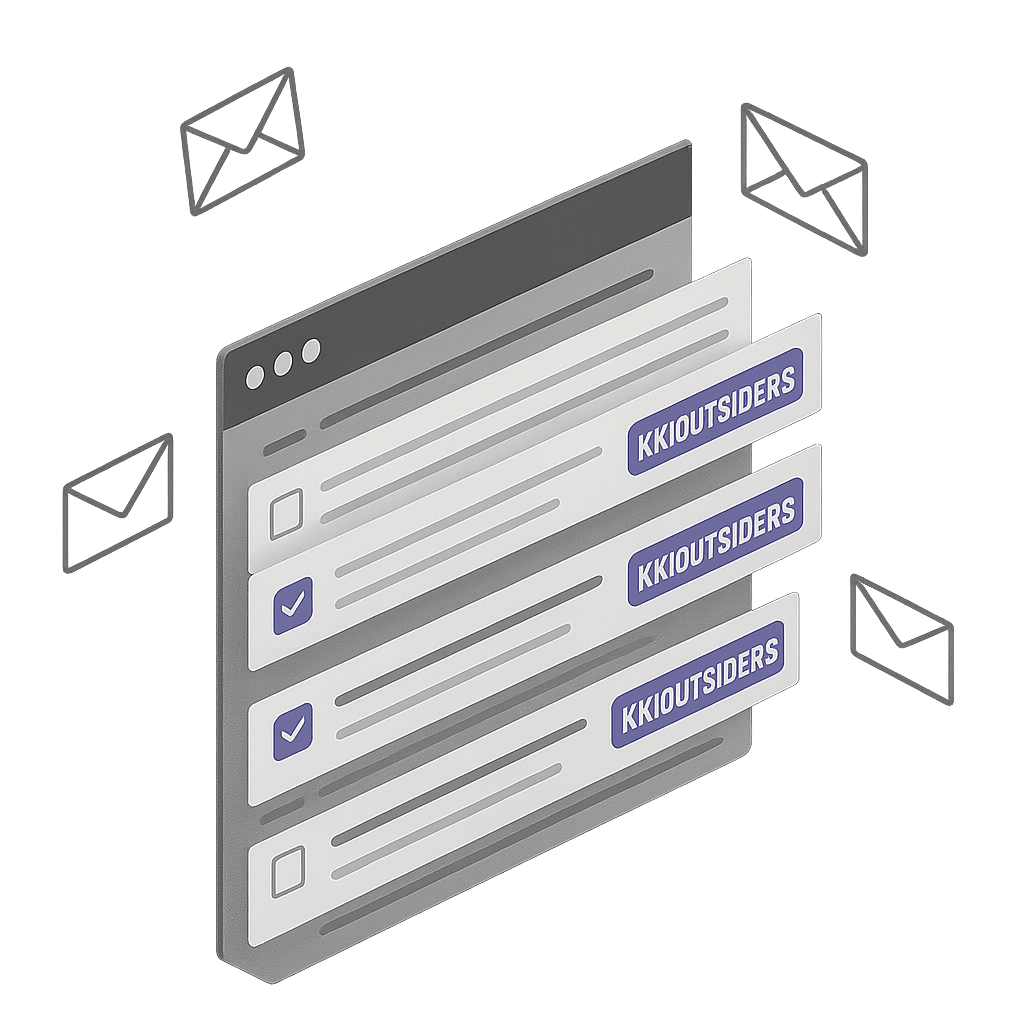
Important markers decide what should stand out after mail reaches Gmail. They do not prevent cold outreach, recruiter sprays, vendor pitches, or first-time strangers from arriving in the inbox. KeepKnown solves that different problem by checking whether a sender is in your contacts and moving outsiders to KK:OUTSIDERS before they compete with known important mail.
Sources: Google Gmail importance markers help and Google Gmail filters help.
Short answer
Use Mark as important for known criteria; use KeepKnown for unknown senders.
A Gmail filter can mark messages as important when they match a sender, subject, phrase, or workflow you already know. That helps with priority review, but it does not create a strict sender allow-list.
When important markers help, and where they stop
Known priority senders
Mark trusted customers, partners, executives, or operational alerts as important when they match clear criteria.
Unread priority review
Search is:important is:unread when important mail still needs action.
Behavior-based importance
Gmail also predicts importance from signals like who you email, which messages you open, and which messages you reply to.
Noise still reaches the inbox
Marking known mail as important does not stop unknown senders from appearing beside it.
Contact-based screening
KeepKnown lets contacts through and moves non-contact senders to KK:OUTSIDERS without deleting the message.
Recoverable cleanup
Outsider mail remains searchable and reviewable, so a real new contact is not permanently lost.
Inbox signal
Make known mail stand out. Remove unknown mail from the competition.
The best use of Mark as important is highlighting trusted patterns. The best use of KeepKnown is reducing the number of untrusted messages that compete with those patterns in the first place.
Questions before you connect.
Can a Gmail filter mark messages as important?
Yes. Create a Gmail filter for known criteria, then choose the Mark as important action for matching messages.
What does Always mark as important mean in Gmail filters?
It tells Gmail to apply an importance marker to messages that match that filter, so those known messages stand out during review.
How do I find important unread emails in Gmail?
Search Gmail for is:important is:unread. Add in:inbox, category:primary, from:, newer_than:, or before:/after: when you need a narrower review set.
How does Gmail decide what is important automatically?
Gmail uses signals such as who you email, which messages you open or reply to, keywords in messages you usually read, and which messages you star, archive, or delete.
Does Mark as important stop unknown senders?
No. It highlights matching messages. Use KeepKnown when non-contact senders should be routed away from the inbox without deletion.
Should I use important markers or KeepKnown?
Use important markers for known priority patterns. Use KeepKnown when the problem is unknown senders reaching the inbox at all.
Gmail importance filters
Mark known mail. Move unknown senders aside.