Gmail on desktop, iPhone and Android
How to block emails on Gmail, on desktop and in the phone app.
On a computer, open the message, select the three-dot More menu next to Reply, and choose Block for that sender. In the Gmail app on iPhone or Android, open the message, tap the three dots in the message header, and choose Block. Gmail then sends that sender's future mail to Spam. Nothing is deleted at once.
Last updated
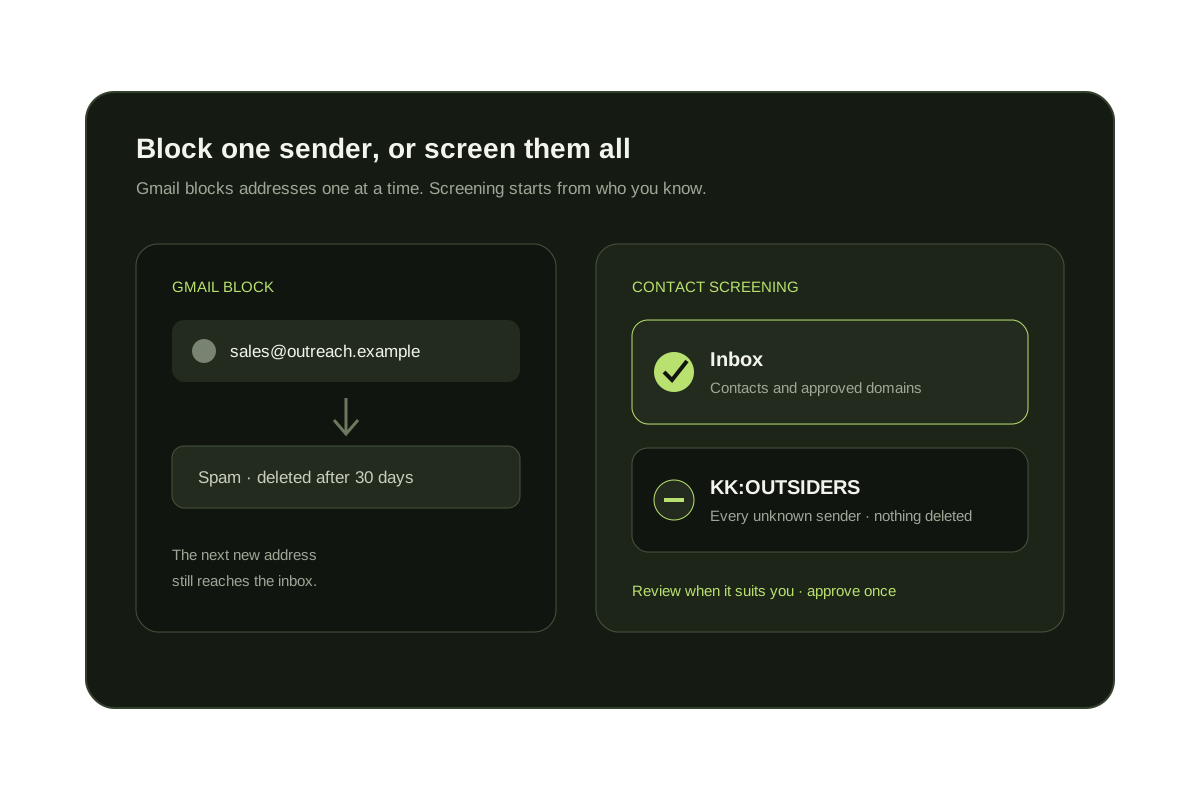
Blocking is the quickest way to stop one person or company from reaching your Gmail inbox. It takes two taps or two clicks, and you can undo it later. Google's own block and unblock guide covers the same steps.
Below are the steps for the web and the phone app. You will also learn how to unblock someone, and how to block a whole domain or many senders at once. Then we cover why blocked mail sometimes still shows up, and what to do when blocking one address at a time stops working.
Short answer
Block one sender at a time, or filter by domain.
Gmail's Block button works on one address. To stop a whole company, create a filter on its domain. To stop every sender you have never dealt with, Gmail has no setting. You need a rule that checks your contacts, which is what the last section covers.
Block a sender in Gmail on the web
- Open Gmail in a browser and open a message from the sender you want to block.
- Select the three-dot More menu next to the Reply arrow at the top right of the message.
- Select Block "Sender name". The name of the sender appears in the menu item.
- Confirm in the dialog by selecting Block.
- Check the result. Gmail shows a banner on that message, and new mail from the address now goes to Spam.
Block a sender in the Gmail app on iPhone or Android
- Open the Gmail app and open a message from the sender.
- Tap the three dots in the message header, next to the Reply arrow.
- Tap Block "Sender name".
- If the message is from a mailing list, Gmail may offer to unsubscribe first. Unsubscribe is the better choice for lists you once joined.
- Menu wording can differ slightly between app versions. If you do not see Block, look for it in the same three-dot menu.
How to unblock a sender
- On a computer, open Gmail and select the gear icon, then See all settings.
- Open the Filters and Blocked Addresses tab.
- Find the address in the blocked list and select Unblock.
- Confirm by selecting Unblock selected addresses.
- You can also open an old message from that sender. Gmail shows an Unblock sender link above it.
How to block a whole domain in Gmail
- Gmail's Block button only takes one address, so use a filter. Select Show search options, the sliders icon in the search bar.
- In the From box, type the domain with an at sign, such as @example.com.
- Select Create filter.
- Tick Delete it to send the mail to Trash. For a gentler option, tick Skip the Inbox and Apply the label so you can still read it.
- Tick Also apply filter to matching conversations if you want old mail handled too, then select Create filter.
- Test it first. Run the same search, from:(@example.com), and check that you do not catch an invoice or a receipt you need.
How to block many senders with one filter
- Open Show search options and select the From box.
- Type the addresses joined with OR, like this: from:(a@x.com OR b@y.com).
- Add as many senders or domains as you need. Keep the list short enough to read.
- Select Create filter and choose Delete it, or Skip the Inbox with a label.
- Edit the filter later from Settings, then Filters and Blocked Addresses, when you want to add more names.
Block, report spam, unsubscribe or filter?
| Tool | What it does | Use it when |
|---|---|---|
| Block sender | Sends future mail from one address to Spam. | One person or company keeps writing to you. |
| Report spam | Moves the message to Spam and tells Google it is junk. | The message is a scam or mail you never asked for. |
| Unsubscribe | Asks the sender to take you off its list. | A newsletter or store you signed up to, from a company you know. |
| Filter | Labels, archives or deletes mail that matches your rule. | A whole domain, or several senders, or a phrase that repeats. |
Why blocked emails still show up
They go to Spam, not nowhere
A blocked sender's mail is not deleted. It lands in the Spam folder, where Gmail clears it after about 30 days. Look there before you think the block failed.
Senders rotate addresses
Cold outreach and junk mail change the sending address or domain. Your block covers the old address only. The next one arrives clean.
It is a mailing list
Newsletters often send from several addresses. Use the Unsubscribe link in the message. Blocking one address will not stop the rest.
Your admin sets domain rules
On a work or school account, a Google Workspace admin can block senders for the whole organization. If the block does not stick, ask your admin.
Where Gmail's block stops
| Limit | What it means for you |
|---|---|
| One address at a time | A company with ten sending addresses needs ten blocks or a filter. |
| New senders keep arriving | Blocking reacts after the first message. It cannot warn you about the next stranger. |
| No contacts rule | Gmail cannot say "block everyone who is not in my contacts." Filters match text, not your address book. |
| Filters are capped | Gmail allows up to 1,000 filters per account, so long block lists eventually run out of room. |
The KeepKnown way: decide by who the sender is
People you know stay put
Contacts and VIP domains stay in your inbox, in the order they arrived.
Strangers wait in a label
Every sender you have never dealt with moves to the KK:OUTSIDERS label. You read it when you choose.
Nothing is deleted
If someone useful lands there, rescue the sender in one step and their next message reaches the inbox. KeepKnown reads headers and contacts, not message bodies.
Free, and it changes nothing
See how many strangers reach your Gmail inbox.
The Gmail audit counts the senders who are not in your contacts and changes nothing in your inbox. KeepKnown has a 7-day free trial with no card. Prefer to stay native? The free filter creator writes the filter for you.
The audit changes nothing. No mail is moved or deleted.
Questions before you connect.
What happens when you block someone on Gmail?
Gmail sends their future emails to your Spam folder. Mail you already received stays where it is. The blocked address can still write to you, and you can unblock it at any time.
Does the sender know they're blocked?
No. Gmail does not tell the sender. Their message looks sent on their side, and it goes to your Spam folder instead of your inbox.
Can I block a domain in Gmail?
Not with the Block button, which takes one address. Create a filter with from:(@example.com) and choose Delete it, or Skip the Inbox with a label. On a work account, an admin can block domains for everyone.
Why am I still getting emails from a blocked sender?
Check Spam first, because blocked mail goes there. If it reaches the inbox, the sender is probably using a different address or domain, or the message comes from a mailing list. Unsubscribe from lists, and filter the new domain.
How do I block all emails except my contacts?
Gmail has no setting for it. A tool such as KeepKnown keeps contacts and VIP domains in the inbox. It moves every unknown sender to the KK:OUTSIDERS label and deletes nothing.
Blocking one sender at a time?
See how many strangers reach your inbox. The audit is free.