Outlook.com, new Outlook, classic Outlook and Mac
How to create rules in Outlook, and what they can't block.
In Outlook.com, Outlook on the web and new Outlook, open Settings, then Mail, then Rules, and select Add new rule. Name it, add a condition and an action, then select Save. In classic Outlook for Windows, right-click a message and choose Rules, then Create Rule. Rules act on new mail unless you run them yourself.
Last updated
Outlook calls its filters rules. A rule watches new mail and acts on anything that matches: move it to a folder, mark it as read, flag it, forward it or delete it. Rules are how you keep newsletters, notifications and repeat senders out of the inbox without blocking them. To stop a sender completely, block them in Outlook instead.
The steps differ between Outlook.com and Outlook on the web, the new Outlook for Windows and Mac, and classic Outlook for Windows. Microsoft's rules guide covers each one. Below are the steps, ready-made recipes, the reasons rules stop working, and the one thing no Outlook rule can do. Two shorter guides go deeper: Outlook rules not working and the order Outlook runs rules in.
Short answer
Every Outlook rule is a name, a condition and an action.
Rules you make in Outlook.com, Outlook on the web, new Outlook or Microsoft 365 run in your mailbox, so they work when Outlook is closed and on mail you read on your phone. Classic Outlook can also make client-only rules, which run only while it is open on that computer. Rules act on new mail unless you run them on old mail yourself.
Create a rule in Outlook.com, Outlook on the web and new Outlook
- Select Settings, the gear icon, then Mail, then Rules.
- Select Add new rule and type a name for it.
- Under Add a condition, choose what to match, such as From or Subject includes, and fill it in. Condition names vary slightly between versions.
- Under Add an action, choose what happens, such as Move to a folder, Mark as read or Delete.
- Optional: select Add an exception for messages the rule should leave alone.
- Stop processing more rules is ticked by default. Clear it if later rules should also act on the same message.
- Select Save.
- Shortcut: right-click a message and choose Rules (Rule in Outlook.com), then Create rule. Pick a folder and select OK, or select More options for the full editor.
Create a rule in classic Outlook for Windows
- Right-click a message and select Rules, then Create Rule. Tick the conditions, choose a folder, and select OK.
- For more choices, select File, then Manage Rules & Alerts, then New Rule.
- Pick a template, such as Move messages from someone to a folder, or start from a blank rule with Apply rule on messages I receive.
- Tick the conditions and actions, click each underlined value to fill it in, then add any exceptions.
- Name the rule. Tick Run this rule now on messages already in "Inbox" to sort the mail you have, then select Finish.
Create a rule in Outlook for Mac
- On the Outlook menu, select Settings, then Rules in the side pane.
- Select Add Rule, the plus button, and name the rule.
- Under Select a Condition, pick what to match. Under Select an action, pick what happens.
- Use Add another condition or Add an exception if you need them. Stop processing more rules is on by default.
- New Outlook for Mac creates server rules only. Legacy Outlook for Mac keeps its rules under Tools, then Rules.
Run, edit and order your rules
Run a rule on old mail
New Outlook: Settings, Mail, Rules, then the Run rule now icon next to the rule. Classic Outlook: File, Manage Rules & Alerts, Run Rules Now. Outlook.com cannot run rules on existing mail yet, so use Sweep or Move to.
Edit, delete or pause
In Settings, Mail, Rules, use the pencil or More actions (the three dots) next to a rule to edit or delete it. The toggle switches a rule off without deleting it.
Put rules in order
Rules run from the top of the list down. Use the up and down arrows to put specific rules first, so a broad rule does not catch the mail before them.
On your phone
The Outlook app for iPhone and Android has no rules settings. Create rules in a browser. Rules kept in your mailbox still sort the mail you read on your phone.
Outlook rule recipes that keep unwanted mail out
| Goal | Condition | Action |
|---|---|---|
| Newsletters out of the inbox | From is each newsletter's address | Move to a Newsletters folder |
| A noisy company, without blocking it | The sender's address includes example.com | Move to a folder, or mark as read |
| Notifications you only skim | Subject includes a phrase such as notification | Mark as read and move to a folder |
| Mail where you are only copied | You are on the Cc line | Move to a CC folder |
| Invoices in one place | Subject includes invoice or receipt | Move to an Invoices folder |
| Strangers you have never emailed | No Outlook condition exists for this | Needs sender screening (see below) |
Why Outlook rules stop working
It is a client-only rule
Some classic Outlook rules run only while Outlook is open on that computer, and new Outlook cannot process some of them. Recreate the rule in Outlook on the web so it runs in your mailbox.
Another rule caught the mail first
Rules run top to bottom, and Stop processing more rules is on by default. Move the specific rule up, or clear that option on the rule above it.
It only runs on new mail
A new rule ignores mail you already have until you run it by hand. Outlook.com cannot run rules on existing mail.
It is not a Microsoft account
New Outlook does not run rules for Gmail, Yahoo or iCloud accounts added to it. Create the filter in that provider instead.
The rules quota is full
Microsoft 365 work and school mailboxes on Exchange Online keep all enabled rules within 256 KB. Long names and many conditions use it up. Delete or merge rules; disabled rules do not count.
The condition does not match
Test the rule on a real message. A From condition matches the exact address, so mail from a second address slips past. Classic Outlook shows broken rules in red.
What Outlook rules can't do
| Limit | What it means for you |
|---|---|
| No contacts condition | Outlook on the web and new Outlook have no condition for senders you have never dealt with. Classic Outlook has an address-book exception, but only in that app. |
| They need something to match | A rule needs an address, a domain or a phrase. A first-time sender matches none of them. |
| Space runs out | Exchange Online limits enabled rules to 256 KB per mailbox, so long sender lists fill it. |
| No rules on your phone | You cannot create or edit rules in the Outlook mobile app. |
| They act after delivery | A rule moves or deletes mail once it arrives. To send a sender to Junk every time, block them. |
Rules sort mail you can describe. Screening handles strangers.
Contacts stay, strangers wait
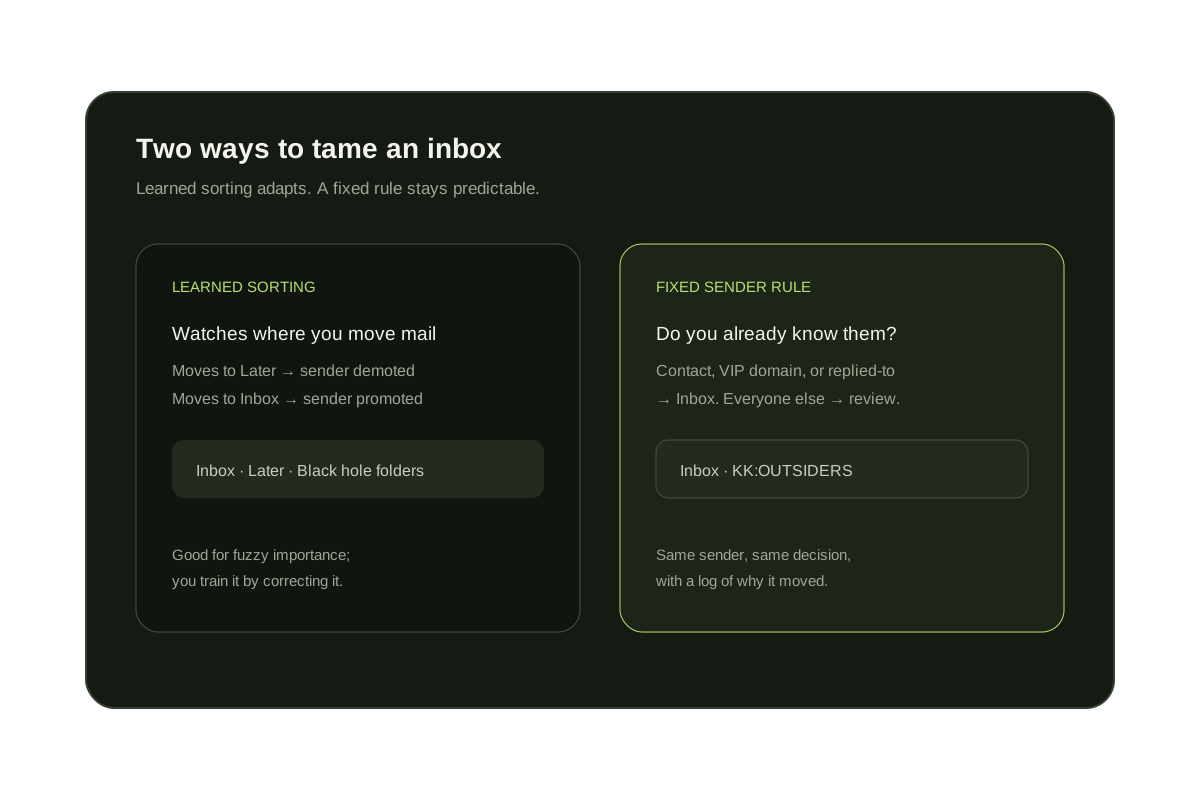
KeepKnown checks each new sender against your contacts and the domains you approve. Unknown senders move out of the Outlook inbox with a KK:OUTSIDERS category.
How the email screener worksNothing deleted, nothing sent
Mail is moved, never deleted, and you rescue a sender in one step. On Outlook, KeepKnown never sends mail from your account. It reads headers and contacts, not message bodies.
Plain-English rules with a preview
Describe other rules in plain English and preview which messages would move before anything moves. It works with Outlook.com and Microsoft 365.
Compare it with SaneBox and othersFor Outlook.com and Microsoft 365
Add the rule Outlook is missing.
KeepKnown keeps contacts and VIP domains in the inbox and moves everyone else out with a KK:OUTSIDERS category. The 7-day free trial needs no card. Plans start at $12.99/month.
No card for the trial. Nothing is deleted.
Questions before you connect.
How do I create a rule in Outlook?
In Outlook.com, Outlook on the web or new Outlook, open Settings, Mail, Rules and select Add new rule. Add a name, a condition and an action, then Save. In classic Outlook, right-click a message and choose Rules, then Create Rule.
Why are my Outlook rules not working?
The usual causes are a client-only rule that needs classic Outlook open, an earlier rule with Stop processing more rules, a rule that only runs on new mail, a non-Microsoft account in new Outlook, or a full rules quota.
Can I create Outlook rules on my phone?
Not in the Outlook app for iPhone and Android, which has no rules settings. Create the rule in a browser at outlook.com or in Outlook on the web. It then also sorts the mail you read on your phone.
How many rules can I have in Outlook?
There is no fixed number. On Exchange Online, which runs Microsoft 365 work and school mailboxes, enabled rules share 256 KB, so the count depends on how long each rule is. Disabled rules do not count.
Can an Outlook rule filter senders who aren't in my contacts?
Not in Outlook on the web or new Outlook, which have no contacts condition. Classic Outlook has an address-book exception. KeepKnown adds the rule for Outlook.com and Microsoft 365 and moves unknown senders out of the inbox without deleting them.
Rules can't screen strangers
KeepKnown keeps unknown senders out of your Outlook inbox.