Outlook.com, new Outlook, classic Outlook and the app
How to block emails on Outlook, in every version.
In Outlook.com, Outlook on the web and new Outlook, open Settings, then Mail, then Junk email, and add the address or domain to your blocked senders. In classic Outlook for Windows, right-click the message and choose Block, then Block Sender. Blocked mail goes to the Junk Email folder, and the sender is not told.
Last updated
Outlook can block one sender or a whole domain, and every version sends the blocked mail to the Junk Email folder instead of your inbox. Where you click depends on which Outlook you use: Outlook.com or Outlook on the web in a browser, the new Outlook for Windows, classic Outlook for Windows, or the phone app. Microsoft's block or unblock senders guide covers the settings route.
This page gives the steps for each version, then covers unblocking, the limits of the blocked senders list, and why blocked mail sometimes still arrives. To sort mail into folders rather than block it, see the Outlook rules guide. On Gmail, the steps are in how to block emails on Gmail.
Short answer
Add the sender to Blocked senders, or block the whole domain.
In Outlook.com, Outlook on the web and new Outlook, the blocked list lives in Settings, Mail, Junk email. Classic Outlook adds Block Sender to the right-click menu. Blocked mail goes to Junk, and Outlook does not tell the sender. Your blocked and safe senders lists can hold up to 10,000 addresses and domains between them.
Block a sender in Outlook.com, Outlook on the web and new Outlook
- Select Settings, the gear icon at the top right.
- Select Mail, then Junk email.
- Find Blocked senders and domains and select Add. Some versions show a Blocked senders box with a separate Blocked domains box.
- Type the email address, such as offers@example.com, then select Add.
- Select Save. New mail from that address now goes to the Junk Email folder.
- New Outlook cannot block senders for Gmail, Yahoo or iCloud accounts added to it. Block those in the provider's own settings.
Block a sender in classic Outlook for Windows
- Right-click a message from the sender, then select Block, then Block Sender.
- Or select the message and, on the Home tab, in the Delete group, select Junk, then Block Sender. Newer builds label that button Block.
- Outlook moves the message to the Junk Email folder, and anything new from that address follows it there.
- To review the list, open Junk E-mail Options from the same button and select the Blocked Senders tab.
- On a work account, people in your organization's Global Address List cannot be added to the blocked list.
Block emails in the Outlook app on iPhone and Android
- Microsoft does not publish blocking steps for the mobile app, and its menus change between updates. Open the message and check the three-dot menu for a Block or Report junk option.
- The dependable route is the browser. Open outlook.com, or Outlook on the web for a work account, on your phone or a computer.
- Add the sender under Settings, Mail, Junk email, then the blocked senders list, and select Save.
- For Outlook.com and Microsoft 365 accounts, the blocked list is kept with your mailbox, so the block also applies to mail you read in the app.
- If the app shows a Gmail or Yahoo account, block the sender in that provider instead.
How to block a whole domain in Outlook
- In Outlook.com, Outlook on the web or new Outlook, open Settings, Mail, Junk email.
- Type the domain, such as example.com, in the blocked senders and domains list (or Blocked domains), select Add, then Save.
- In classic Outlook, open Junk E-mail Options, select the Blocked Senders tab, select Add, and type example.com or @example.com.
- Never block a shared provider such as gmail.com or outlook.com. That would send millions of real people to Junk.
- If the company also sends receipts or alerts you need, use a rule that moves only its marketing to a folder instead.
How to unblock someone on Outlook
- In Outlook.com, Outlook on the web or new Outlook, open Settings, Mail, Junk email.
- Find the address or domain in the blocked list, select the remove icon next to it, then select Save.
- In classic Outlook, open Junk E-mail Options, select the Blocked Senders tab, select the address, then Remove and OK.
- Unblocking does not move old mail back. Open the Junk Email folder and mark anything you want as not junk.
- To make sure a sender always reaches you, add them under Safe senders and domains on the same page.
Block, report junk, Sweep or a rule?
| Tool | What it does | Use it when |
|---|---|---|
| Block sender | Sends future mail from one address or domain to Junk. | One person or company keeps writing to you. |
| Report junk | Moves the message to Junk and can send a copy to Microsoft. | Junk mail you never asked for. |
| Report phishing | Reports a message that tries to steal a password or money. | It asks you to sign in, pay, or open a file you did not expect. |
| Sweep | Moves or deletes all mail from one sender, and can keep doing it. | Clearing one sender's backlog in Outlook on the web or new Outlook. |
| Rule | Moves, flags or deletes mail that matches conditions you set. | Sorting by sender, subject or phrase without blocking anyone. |
| Safe senders | Keeps a sender out of Junk. | Real mail from someone keeps landing in Junk. |
Where blocked emails go, and why some still show up
They go to Junk Email
Blocked mail is delivered to the Junk Email folder, not bounced, so the sender sees no error. Microsoft's help pages say Junk is emptied automatically after 14 or 30 days, depending on the version, and cannot be recovered after that.
The sender switched address
A block covers the exact address or domain you entered. Mail from a new address or a new domain reaches the inbox until you block that too.
It is a mailing list
Newsletters send from several addresses. Unsubscribe from lists you joined, or use Sweep to clear one sender's backlog.
Your organization's filters come first
On a work account, blocked mail may go to quarantine instead of Junk, and changes to your safe senders may not be recognized. Ask your IT team.
It is not a Microsoft account
New Outlook cannot block senders for Gmail, Yahoo or iCloud accounts added to it. Block them in that provider's settings.
Where Outlook's blocked senders list stops
| Limit | What it means for you |
|---|---|
| 10,000 entries | Blocked and safe senders share a limit of 10,000 addresses and domains. Microsoft suggests blocking domains if you need more. |
| One sender at a time | Every new address or domain needs its own entry. |
| It reacts after the first email | You can only block someone once they have reached you. The next stranger arrives in the inbox. |
| No contacts-only block | Only Sender Screening on personal Outlook.com and the Safe Lists Only junk level in classic Outlook come close. |
Block everyone except the people you know
Sender Screening on Outlook.com
Personal accounts can turn it on under Settings, Account, then Sender Screening. Senders you have not allowed or blocked wait for you to sort them, and your choices update the safe and blocked lists.
Outlook whitelist-only optionsSafe Lists Only in classic Outlook
In Junk E-mail Options, the Safe Lists Only level treats mail from anyone outside your safe lists as junk. Microsoft warns that stricter levels can catch real mail, so check Junk often.
KeepKnown for Outlook.com and Microsoft 365
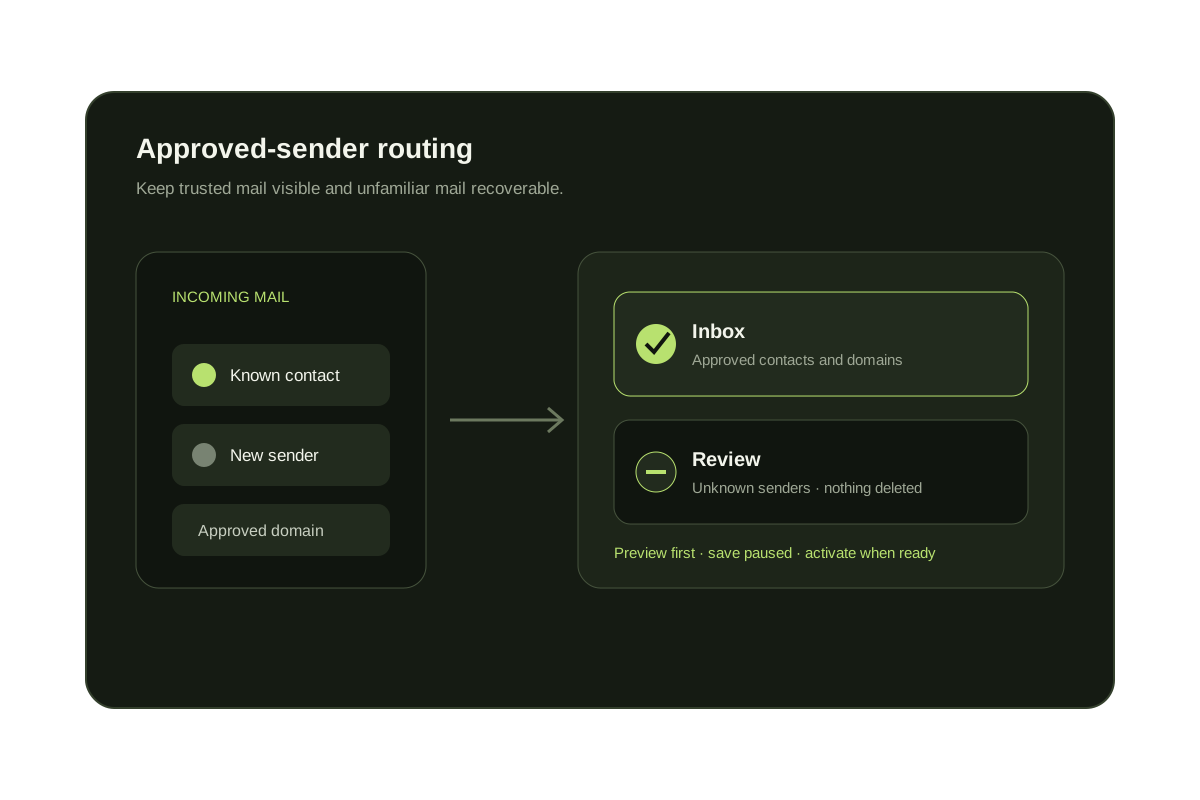
Contacts and VIP domains stay in the inbox. Everyone else moves out of the inbox with a KK:OUTSIDERS category instead of going to Junk. Nothing is deleted, KeepKnown reads headers and contacts rather than message bodies, and on Outlook it never sends mail from your account.
How the email screener worksCompare screening tools
SaneBox, Clean Email and other tools also sort Outlook mail by sender. They differ in what happens to strangers and in price.
SaneBox alternatives comparedFor Outlook.com and Microsoft 365
Keep strangers out of your Outlook inbox without blocking them.
KeepKnown moves senders you have never dealt with out of the inbox, keeps contacts and VIP domains in place, and deletes nothing. The 7-day free trial needs no card. Plans start at $12.99/month.
No card for the trial. Nothing is deleted.
Questions before you connect.
What happens when you block someone on Outlook?
Their future emails go to your Junk Email folder instead of the inbox. Outlook does not tell them, and their message does not bounce. You can unblock them at any time in Settings, Mail, Junk email.
How do I block a whole domain in Outlook?
Open Settings, Mail, Junk email and add the domain, such as example.com, to your blocked senders and domains, then Save. In classic Outlook, add example.com on the Blocked Senders tab of Junk E-mail Options.
Why do I still get emails from someone I blocked in Outlook?
Check the Junk Email folder first, since blocked mail goes there. If it reaches the inbox, the sender is using a new address or domain, or the account is a Gmail or Yahoo account in new Outlook, which Outlook cannot block. Block the domain, or block it at that provider.
Can I block senders in the Outlook app on my phone?
Microsoft does not document a block option for the mobile app. Add the sender in a browser under Settings, Mail, Junk email. For Outlook.com and Microsoft 365 accounts the block also applies to mail you read in the app.
Can Outlook block everyone except my contacts?
Not with the blocked list. Personal Outlook.com accounts can use Sender Screening, and classic Outlook has the Safe Lists Only junk level. KeepKnown moves unknown senders out of the inbox with a KK:OUTSIDERS category and deletes nothing.
Blocking Outlook senders one by one?
Keep strangers out of the inbox without sending them to Junk.