Gmail, Outlook, Yahoo and Apple Mail
How to whitelist an email in Gmail, and add senders in other apps.
Gmail has no whitelist button. It has two ways to the same result. Add the sender to Google Contacts, or create a filter for the address with Never send it to Spam. Both keep their mail out of Spam. This page gives the steps for Gmail on the web and in the app, a whole domain, Outlook, Yahoo and Apple Mail, and what to check when whitelisted mail still lands in Spam.
Last updated
Whitelisting means telling your email app to trust a sender, so their messages reach the inbox instead of Spam. Gmail has no menu item called whitelist or safe senders, unlike Outlook. You get the same result with Google Contacts or with a filter.
This guide is written for two readers. If a company, newsletter or school told you to "add us to your safe senders", the steps are below, one section per app. If you run Google Workspace, Google's own page on allowlists, denylists and approved senders covers the admin side, and we summarize it too. Everything here assumes you keep your sign-in secure. A whitelist is trust, so keep it narrow.
Short answer
Gmail has no whitelist button. Use Contacts or a filter.
Add the sender to Google Contacts, which tells Gmail you know them. For a firmer result, create a filter on their address and tick Never send it to Spam. If a message is already in Spam, open it and select Not spam. Filters need a computer. The Gmail app cannot create them.
Whitelist an email address in Gmail on the web
- Open Gmail in a browser. Select the sliders icon in the search bar.
- In the From box, type the full address, such as sender@example.com. You can also search from:(sender@example.com) and open the search options from there.
- Select Create filter.
- Tick Never send it to Spam. This is the key setting.
- Optional: also tick Always mark it as important, or Apply the label and pick one, so you can find these messages later.
- Tick Also apply filter to matching conversations to rescue messages already in Spam, then select Create filter.
- Send a test. Ask the sender to write to you, then check that it lands in the inbox.
Add the sender to Google Contacts
- Open the message from the sender. Hover over their name and select Add to contacts, or open Google Contacts and choose Create contact.
- Enter the name and the email address, then save.
- Check the address is the one they send from. Newsletters often send from a different address than the one on their website.
- Know the limit. Contacts is a strong trust signal, but it is not a guarantee. A filter is the firmer choice.
Mark a message as Not spam
- Open the Spam folder in the left menu. If you do not see it, select More.
- Open the message that should have arrived.
- Select Report not spam at the top of the message.
- Gmail moves it to the inbox and uses your answer to judge future mail from that sender. Add a filter if it keeps returning to Spam.
Whitelist a sender in the Gmail app on your phone
- The Gmail app on iPhone and Android cannot create filters. Use a computer for that, or use the phone's contacts.
- Add the sender to the contacts on your phone, in the Contacts app or Google Contacts, signed into the same Google account.
- To rescue one message, open Spam in the menu, open the message and tap Report not spam.
- Menu names change between app versions. If you cannot find an option, look in the three-dot menu on the message.
Whitelist a whole domain in Gmail
- Open the search options and type the domain with an at sign in the From box, such as @example.com.
- Select Create filter, then tick Never send it to Spam.
- Use this for a company or a school where several people write to you. Use a single address for anyone else.
- Understand the risk. Anyone who forges that domain, or whose account is hacked, also skips Spam. Keep the filter narrow and review it a few months later.
- Apply a label in the same filter. A label such as Trusted domains shows you what the rule lets through.
- Avoid free providers. Never whitelist @gmail.com or @outlook.com, which would trust millions of strangers.
"Add us to your safe senders" in other apps
Outlook
Open Settings, then Mail, then Junk email. Under Safe senders and domains, select Add and type the address or domain. Names differ between Outlook on the web, new Outlook and the desktop app.
Yahoo Mail
Add the sender to your contacts, or create a filter in Settings, then More settings, then Filters. Send mail from that address to the Inbox. Menu names are approximate.
Apple Mail and iCloud
Add the sender to Contacts. In Apple Mail on a Mac, open the message and add the sender to VIPs from the name. iCloud Mail on the web also has Rules in its settings.
iPhone Mail
Open a message, tap the sender's name, then Add to VIP. VIP mail is highlighted and can notify you. Names vary between iOS versions.
For Google Workspace admins: approved senders and allowlists
- Open the Admin console and go to Apps, then Google Workspace, then Gmail, then Spam, phishing and malware. Menu names change, so follow Google's page if yours differs.
- Add an approved sender list, or an IP allowlist for mail you relay yourself. Approved senders skips spam filtering for those addresses or domains.
- Prefer the narrowest rule. An address beats a domain, and a domain beats an IP range.
- Check the sender's SPF, DKIM and DMARC records first. A rule on a domain that fails authentication invites spoofed mail.
- Write down who approved what and why. Review the list every few months and remove entries nobody needs.
Why whitelisted emails still go to spam
The address does not match
Senders use a different address than the one you trusted. Open a message and read the From line. Newsletters often use a separate mailing domain.
A block or filter conflicts
A blocked address overrides your allow rule. Check Settings, then Filters and Blocked Addresses, and remove any block for that sender.
The filter was not applied to old mail
A filter only handles new mail unless you tick Also apply filter to matching conversations. Mark old messages Not spam.
The message looks dangerous
Gmail can still warn about or hold mail that fails authentication or looks like phishing. A trusted sender with broken set-up may land in Spam anyway. Tell them to fix their SPF and DKIM records.
Your admin overrides you
On a work or school account, the admin's policies can override your filters. Ask your admin to approve the sender.
You are looking in the wrong place
Mail can land in Promotions, Social or Updates instead of Primary. Search for the sender before assuming it is lost.
Where a Gmail whitelist stops
| Limit | What it means for you |
|---|---|
| It only protects mail you name | A whitelist makes sure chosen senders arrive. It does nothing about everyone else. |
| There is no safe-senders-only mode | Gmail cannot keep only your safe senders in the inbox and move the rest elsewhere. |
| Trust can be abused | A whitelisted domain that is hacked or forged still reaches you. |
| Lists grow stale | People change companies. Old rules keep trusting addresses nobody checks. |
Want only your safe senders in the inbox?
Your contacts are the whitelist
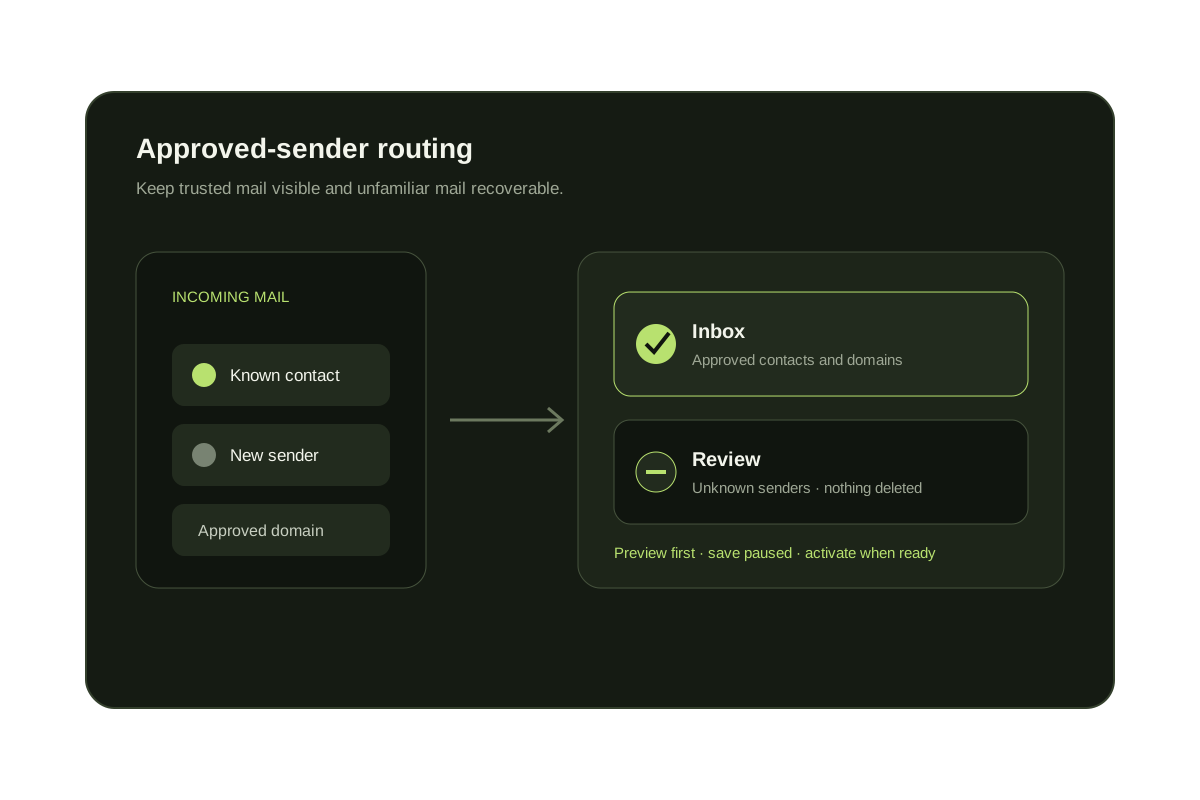
KeepKnown screens Gmail and Outlook by sender. Mail from your contacts and VIP domains stays in the inbox.
Everyone else waits in a label
Senders you have never dealt with move to the KK:OUTSIDERS label. Nothing is deleted. You rescue a sender in one step.
Headers and contacts only
KeepKnown reads headers and contacts, not message bodies. You write plain-English rules and preview them first. The page at https://keepknown.com/gmail-only-allow-emails-from-contacts/ explains the setup.
Free, and it changes nothing
See how many senders are outside your safe list.
The Gmail audit counts the senders who are not in your contacts and changes nothing in your inbox. KeepKnown has a 7-day free trial with no card.
The audit changes nothing. No mail is moved or deleted.
Questions before you connect.
Does Gmail have a whitelist or safe senders list?
No. Gmail has no list with that name. Add the sender to Google Contacts, or create a filter that ticks Never send it to Spam. Both do the job of a whitelist.
How do I whitelist a domain in Gmail?
Create a filter with the domain in the From box, such as @example.com, and tick Never send it to Spam. Keep it to domains you trust, since a forged or hacked domain gets through too.
Can I whitelist an email in the Gmail app?
Not with a filter, because the app cannot create them. Add the sender to your phone's contacts, or open Spam and tap Report not spam. Use a computer for a lasting rule.
What is the difference between a whitelist and an allowlist?
Nothing in practice. Allowlist is the newer name for the same idea, a list of senders you trust. Google's admin pages use allowlist and approved senders.
Can Gmail show only emails from my safe senders?
Not on its own. Filters match text, not your address book. A tool such as KeepKnown keeps contacts and VIP domains in the inbox and moves everyone else to the KK:OUTSIDERS label, deleting nothing.
Safe senders only?
Keep contacts in the inbox and route the rest. The audit is free.