Gmail on a computer, plus a free sender-by-sender cleanup
How to clean up your Gmail inbox, and keep it that way.
Type in:inbox older_than:30d in the Gmail search bar, tick the select-all box, choose Select all conversations that match this search, then click Archive. Gmail has no view that ranks every sender in your inbox, so for a cleanup by sender, KeepKnown's free cleanup lists who sent the most, archives the senders you pick, and lets you undo it for 7 days.
Last updated
Most of a cluttered Gmail inbox is old mail from a handful of senders: newsletters, shops and notifications. Clearing it takes two passes, first by age and then by sender, and both work with Gmail's own search. Google's search operator guide lists every operator used below.
Archiving takes mail out of the inbox and keeps it in All Mail, where search still finds it. It does not free storage: for that, delete the mail and empty the Trash. For newsletters, Gmail's Manage subscriptions view unsubscribes in one click.
We make KeepKnown, whose free cleanup is described further down; the Gmail steps work without it. To stop the mess coming back, see how to block emails on Gmail and how to block emails from unknown senders.
Short answer
Archive old mail by age, then clear the senders that fill your inbox.
Search in:inbox older_than:30d, select every matching conversation and click Archive. Then search from: for each sender that keeps filling your inbox, archive their mail, and unsubscribe or add a filter so their new mail skips the inbox. Archiving deletes nothing, and search still finds all of it.
Clean up Gmail with search, on a computer
- Open Gmail in a browser. The Gmail app can't select every result of a search at once.
- In the search bar, type in:inbox older_than:30d and press Enter. Use older_than:1y to start with the oldest mail.
- Tick the checkbox above the list to select the page, then click Select all conversations that match this search.
- Click Archive. Gmail asks you to confirm the bulk action; click OK. The mail leaves the inbox and stays in All Mail.
- Repeat with category:promotions in:inbox and category:social in:inbox to clear the tabs you rarely read.
- For one sender, search from: followed by their address, select all and archive. Choose Create filter from the search options so their future mail skips the inbox too.
Archive, delete or unsubscribe?
Archive
Takes mail out of the inbox and keeps it in All Mail, where search still finds it. It doesn't free any storage.
Delete
Moves mail to Trash, which Gmail empties after 30 days. Search larger:10M first to find the messages that use the most space.
Unsubscribe
Stops new mail from lists you joined. Gmail's Manage subscriptions view, in the left menu, lists them with the most frequent first.
Clean up Gmail by sender with KeepKnown's free cleanup
- Connect Gmail or Outlook. To build the list, KeepKnown reads only the sender, subject and date of the inbox mail you choose to scan.
- Pick an age, from any age to older than a year. Older than 30 days is the default, and starred mail is left out.
- See your senders ranked by how many messages each has in your inbox, and tick the ones to clear.
- Check the example messages on the review screen, then archive. Your first cleanup covers up to 2,000 messages, free and with no card.
- Changed your mind? Restore the cleanup from its result screen for 7 days, and the archived mail goes back to your inbox.
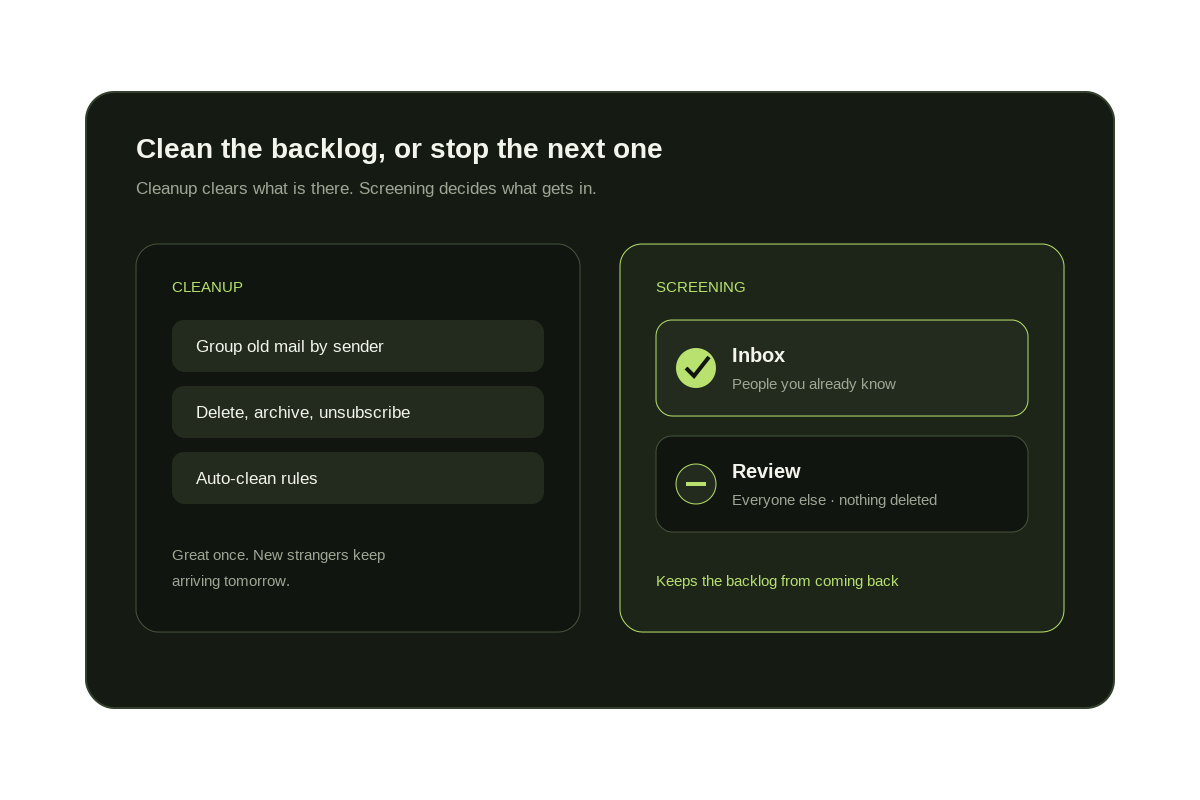
- Keep it clean: send those senders' future mail to a KK:CLEANUP label, or keep everyone you don't know out of the inbox with screening.
Free sender-by-sender cleanup
See who fills your inbox, then clear them in one pass.
KeepKnown ranks the senders in your inbox by message count and archives the ones you pick. Nothing older moves until you approve it, and you can undo for 7 days.
First cleanup free, up to 2,000 messages. No card.
Which cleanup method fits
| Method | Clears old mail | Groups by sender | Stops it coming back | Undo |
|---|---|---|---|---|
| Gmail search and Archive | Yes, by age, tab or sender | No, one sender per search | No | Move mail back to the inbox by hand |
| Gmail filter | Yes, with Also apply filter to matching conversations | One sender or domain per filter | Yes, for the senders you list | Delete the filter, then move mail back by hand |
| Gmail Manage subscriptions | No | Yes, for mailing lists | Yes, by unsubscribing | Subscribe again on the sender's site |
| KeepKnown cleanup | Yes, up to 2,000 messages free the first time | Yes, ranked by message count | Yes, with a rule for those senders or for strangers | Restore for 7 days |
Questions before you connect.
How do I clean up my Gmail inbox fast?
On a computer, search in:inbox older_than:30d, tick the select-all box, choose Select all conversations that match this search, and click Archive. Then clear the biggest senders one at a time with from:, or use a cleanup that ranks your senders for you.
Does archiving free up Gmail storage?
No. Archived mail stays in All Mail and still counts toward your storage. To free space, delete mail and empty the Trash. Search larger:10M or has:attachment to find the biggest messages first.
How do I delete all emails from one sender in Gmail?
Search from: followed by the sender's address, tick the select-all box, choose Select all conversations that match this search, and click Delete. Gmail keeps deleted mail in Trash for 30 days, then removes it.
Is KeepKnown's cleanup free?
Your first cleanup is free, up to 2,000 messages, with no card. More cleanups come with the 7-day free trial or a plan, from $12.99/month.
Does the cleanup read my emails?
The cleanup preview reads only the sender, subject and date of the messages it scans, and it archives only the senders you approve. It archives rather than deletes, so everything stays in All Mail.
What else happens when I connect Gmail?
Once your contacts are in, KeepKnown screens new mail: messages from people you don't know move from the inbox to KK:OUTSIDERS, and on Gmail it replies once to each real person it moves so they can reach you. You can pause screening or switch the reply off at any time.
Does the cleanup work with Outlook?
Yes. For Outlook.com and Microsoft 365, the cleanup moves the mail you pick to your Archive folder. Nothing is deleted.